WebP to BMP
Easily convert WebP image files to BMP format with our WebP to BMP converter tool for high-quality images.
WebP to BMP is a free tool that converts a WebP image to a BMP bitmap file entirely in your browser.
How do I convert WebP to BMP?
Select the WebP file, let your browser convert it, then save the resulting BMP file.
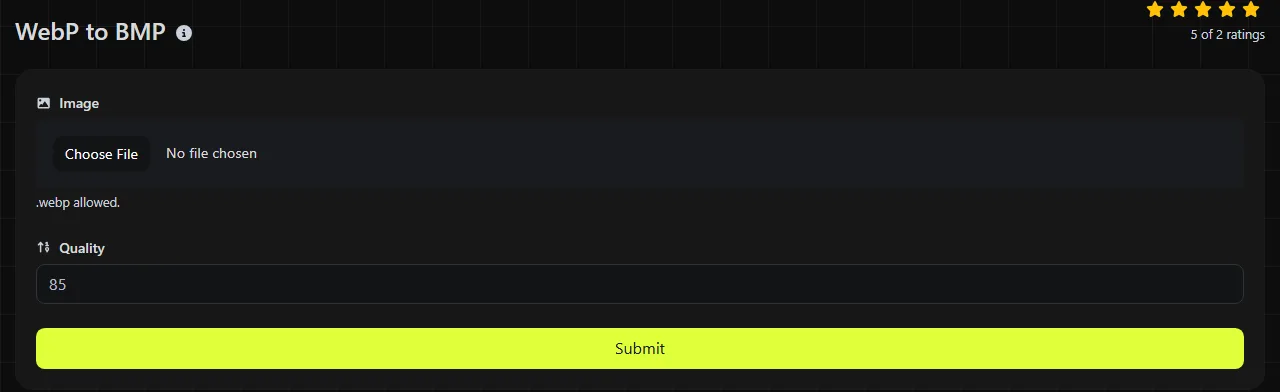
- Choose the WebP image you want to convert.
- Wait while the WebP-to-BMP conversion is completed locally in your browser.
- Save the BMP and open it in the application where you plan to use it.
The source image is never uploaded to a server. This is important when the file contains private material, such as an internal design, an unpublished product photo, or a screenshot containing personal information.
Compare the saved BMP with the source WebP before deleting the original. Pay particular attention to transparent areas and animated files because BMP does not handle those features in the same practical way as WebP.
What changes when WebP is converted to BMP?
The compressed WebP image is decoded into pixels and written as a BMP file, usually resulting in a substantial increase in file size.
- Compression: WebP supports both lossy and lossless compression. BMP files are commonly stored as uncompressed pixel data, although the specification also includes limited compression methods such as run-length encoding.
- Transparency: WebP supports an alpha channel. Some BMP variants can store alpha information, but support varies among applications, and the tool does not promise that WebP transparency will be preserved. Do not rely on BMP for transparent web graphics without checking the output.
- Animation: WebP can contain multiple animated frames. A standard BMP contains one raster image rather than an animation. The converter does not specify how it selects or handles frames, so inspect the result if the source WebP is animated.
- Image quality: Converting a lossless WebP can retain the appearance of the decoded pixels, subject to color and transparency handling. Converting a lossy WebP to BMP does not restore detail removed during the original WebP compression.
- Support: WebP is widely supported by Chrome, Edge, Firefox, and Safari and is suitable for web delivery. BMP is closely associated with Windows and is supported by many desktop image applications, but it is rarely a sensible format for a public website.
The file extension also changes from .webp to .bmp. Simply renaming the source file does not convert it because the encoded image data remains WebP.
When should I convert WebP to BMP?
Convert WebP to BMP when a specific application, device, or older workflow requires bitmap input and cannot read WebP directly.
Common situations include importing an image into legacy Windows software, preparing a simple bitmap for an older device, or providing pixel data to a program that accepts BMP but does not have a WebP decoder. BMP can also be useful for inspecting uncompressed RGB pixel data during image-processing development.
Converting images for use on a website usually does not make sense. WebP typically requires much less storage and network bandwidth, while BMP offers no practical web benefit. If the destination accepts JPEG and the image is a photo, WebP to JPG is usually a more suitable choice. For a Windows favicon, use WebP to ICO instead because ICO can contain the icon sizes that browsers and desktop software expect.
What to expect from file size and quality
A BMP will typically be much larger than its WebP source because WebP compression is designed to reduce file size, while a conventional BMP records color values for each pixel with little or no compression.
As a rough estimate, a 1,600 × 900 image stored as 24-bit RGB needs about 4.32 MB for its pixel data, plus a small header and any row padding. A 32-bit representation needs about 5.76 MB. You cannot determine the size of the original WebP from its dimensions alone because it depends on the image content, compression mode, and quality settings.
For example, the BMP cannot look better than the decoded WebP source. A WebP photo that already contains blur or compression artifacts will produce a BMP with the same visible defects. The BMP may be larger, but the extra bytes do not restore lost detail.
Very large images can require considerable browser memory because the converter must decode the compressed WebP file and construct the BMP output. A damaged file, an empty file, or a file with a misleading .webp extension may not decode successfully.
Frequently asked questions
Can I convert the BMP back to WebP later?
Yes, as long as you have access to a BMP-to-WebP encoder. Choosing lossy WebP during that later conversion may remove additional image detail, while lossless WebP avoids a new lossy compression stage but may produce a larger WebP file.
Will the image metadata be preserved?
Do not assume that EXIF details, comments, color profiles, or other metadata will survive. The tool's stated function is image-format conversion, and it does not promise metadata preservation, so keep the original file if those records are important.
Can Microsoft Paint open the converted file?
Microsoft Paint and many other Windows image applications support standard BMP files. Older or specialized software may accept only certain color depths or BMP header versions, so test the output in the application where you intend to use it.
Is it safe to convert confidential images in my browser?
The conversion takes place entirely in your browser, and the image is never uploaded to a server. You should still avoid saving the converted BMP output to a shared folder, synchronized drive, or public computer where another person or service could access it.
Final checks
- Confirm that the BMP opens in the intended application instead of relying on a preview alone.
- Inspect edges that were transparent in the WebP, and carefully check any animated source.
- Compare the BMP's dimensions and visible colors with the source WebP.
- Keep the WebP if you may need its smaller size, transparency, animation, or original metadata later.
Similar Tools
Easily convert WebP image files to GIF format with our WebP to GIF converter tool for creating animated images.
Easily convert WebP image files to PNG format with our WebP to PNG converter tool for high-quality images.
Easily convert WebP image files to JPG format with our WebP to JPG converter tool for versatile image usage.
Popular Tools
Create your own custom signature and download it easily with our signature generator tool for personalized e-signatures.
Calculate the size of any text in Bytes (B), Kilobytes (KB), or Megabytes (MB) using our text size calculator tool.
Use the reverse IP lookup tool to find the domain or host associated with any IP address quickly and easily.
Use our ping tool to check the status and response time of any website, server, or port quickly and efficiently.
Generate your free WhatsApp link instantly with our WhatsApp Link Generator. Add a custom message and start chats in one click. No login or coding required.
Digily Link's IP lookup tool provides detailed information about any IP address. Use this free online service to get comprehensive IP data.