GIF to JPG
Easily convert GIF image files to JPG format with our GIF to JPG converter tool for versatile image usage.
GIF to JPG is a free tool that converts GIF image files to JPG files for use on websites, in documents, and on platforms that expect a standard still image.
How do I convert a GIF to JPG?
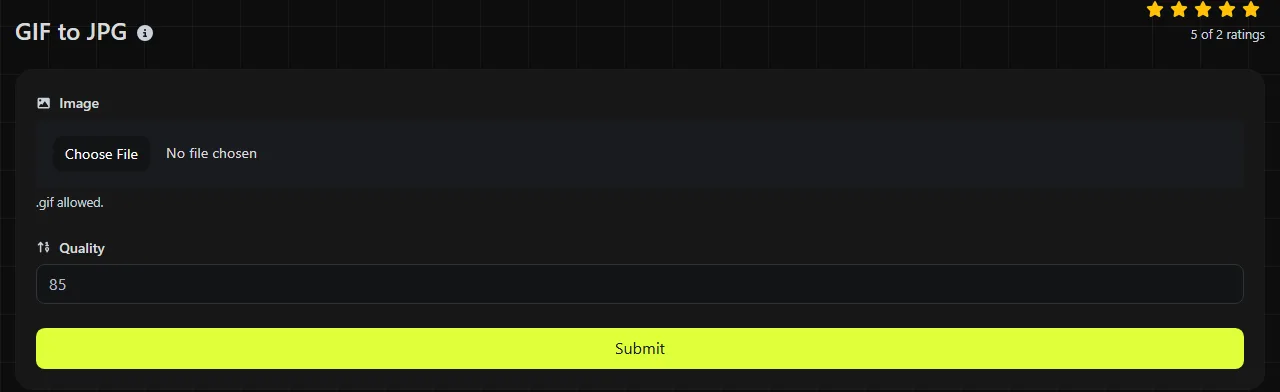
Choose your GIF, start the conversion, and save the resulting JPG. All processing takes place in your browser, and your GIF is never uploaded to a server.
- Select the GIF file you want to convert.
- Start the conversion and wait for your browser to create the JPG.
- Save the JPG, then open it to check the selected frame, background, and image quality.
That final check is important when the source is animated or transparent. JPG cannot store animation or transparency, so those parts of the GIF cannot be preserved unchanged.
What changes when a GIF becomes a JPG?
The image changes from a palette-based GIF to a lossy JPG still image.
| Property | GIF | JPG |
|---|---|---|
| Color | Up to 256 colors per frame | Designed for continuous-tone, full-color images |
| Compression | Lossless LZW compression of indexed colors | Lossy compression that discards some image detail |
| Transparency | Supports simple on-or-off transparency | Does not support transparency |
| Animation | Can contain multiple animated frames | Contains one still image |
| Typical use | Short animations, badges, and simple graphics | Photographs and detailed still images |
| Support | Widely supported by browsers and messaging platforms | Widely supported by browsers, office software, image editors, and publishing platforms |
JPG compression works well for photographs because small changes between neighboring pixels are less noticeable. It is less suitable for sharp text, logos, and flat blocks of color, where compression can produce ringing, blur, or block-like artifacts around edges.
When should I convert GIF to JPG?
Convert a GIF to JPG when you need a still image and the destination does not require GIF animation or transparency. This is often useful when inserting an old static GIF photograph into a Word document, uploading a still image to a listing system, or providing a conventional photo format to software with limited GIF support.
- Use JPG for a photographic GIF that has been reduced to a 256-color palette.
- Use JPG when a website or form accepts JPEG images but rejects GIF files.
- Use JPG when you need one still frame from an animated source and do not need to preserve motion.
- Keep the GIF when animation is the purpose of the image.
- Choose GIF to PNG instead if a static image needs lossless storage, sharp edges, or transparency.
Converting a GIF to JPG does not restore colors or detail already removed when the GIF was created. It also cannot improve a blurred, heavily compressed, or low-resolution source. It cannot reconstruct missing image information.
How large will the converted JPG be?
A JPG created from a photographic GIF will often be smaller, but it can also be similar in size or larger. The dimensions, image complexity, and JPG quality setting used during encoding all affect the final size.
For example, a static GIF containing a dithered photograph may compress more efficiently as JPG because JPEG compression is designed for gradual color changes. A small logo with five flat colors may already be compact as GIF, while JPG compression can introduce artifacts around hard edges. In that case, conversion can increase the file size while making the image look less clean.
An animated GIF and one JPG are not directly comparable by file size. The GIF stores several frames, whereas the JPG stores only a still image. Keep the original GIF if you may need to edit or recover the animation later.
Animated, transparent, and difficult GIF files
A JPG cannot preserve an animated GIF as an animation. It can contain only one still image, so inspect the output instead of assuming it includes the specific moment you wanted.
Transparent GIF pixels must also become opaque because JPG has no alpha channel. The resulting background depends on how the conversion handles those pixels, so check light-colored logos and cutout graphics for an unwanted background or fringe.
Spaces, punctuation, accented letters, and non-Latin characters in a filename do not change the image data, although the browser and operating system control how the saved filename appears. A corrupt file, an empty file, or a different format simply renamed with a .gif extension is not valid GIF input. Very large or long animated GIFs can also use substantial memory because browser-based processing must decode image frames on the device.
Frequently asked questions
Are .jpg and .jpeg different formats?
No. Both extensions refer to the JPEG image format. The shorter .jpg extension became common on systems that historically limited filename extensions to three characters.
Can I just change the file extension instead of converting the image?
No. Renaming picture.gif to picture.jpg changes only the filename, not the encoded data inside it. Software that examines the file contents will still identify it as GIF and may reject it.
Will the JPG preserve the GIF's metadata?
Do not assume that comments, color information, or other metadata will be preserved during conversion. If metadata matters for an archive or publishing workflow, inspect the output with an image editor or metadata utility before deleting the source.
Can I convert the JPG back to the original animated GIF?
No. A JPG does not contain the discarded frame sequence, timings, or looping instructions. A later JPG-to-GIF conversion would create a still image in GIF format unless you provided additional frames yourself.
Is JPG suitable for printing?
JPG is commonly accepted for printing, but converting the format does not increase resolution. Check the pixel dimensions against the intended print size, and ask the printer whether it requires a specific color profile or CMYK file instead of assuming that a browser-created JPG is press-ready.
What should I check before deleting the GIF?
Open the JPG at full size and inspect the text, hard edges, transparent areas, and the frame selected from any animation. Keep the original GIF until you have confirmed that the still image, background, and file size work for the destination.
Similar Tools
Easily convert GIF image files to PNG format with our GIF to PNG converter tool for high-quality images.
Easily convert GIF image files to WebP format with our GIF to WebP converter tool for efficient image compression.
Easily convert GIF image files to ICO format with our GIF to ICO converter tool for creating favicons.
Popular Tools
Create your own custom signature and download it easily with our signature generator tool for personalized e-signatures.
Calculate the size of any text in Bytes (B), Kilobytes (KB), or Megabytes (MB) using our text size calculator tool.
Use the reverse IP lookup tool to find the domain or host associated with any IP address quickly and easily.
Use our ping tool to check the status and response time of any website, server, or port quickly and efficiently.
Generate your free WhatsApp link instantly with our WhatsApp Link Generator. Add a custom message and start chats in one click. No login or coding required.
Digily Link's IP lookup tool provides detailed information about any IP address. Use this free online service to get comprehensive IP data.