BMP to WebP
Easily convert BMP image files to WebP format with our BMP to WebP converter tool for efficient image compression.
BMP to WebP is a free tool that converts bitmap image files to WebP for smaller, web-friendly images.
How do I convert a BMP file to WebP?
You can convert a BMP to WebP entirely in your browser. The input image is never uploaded to a server, which is useful when it contains confidential artwork, internal screenshots, or customer information.
Keep the original BMP until you have checked the converted image in the browser, content management system, or application where you plan to use it. The WebP extension is usually written as .webp.
What changes when I convert BMP to WebP?
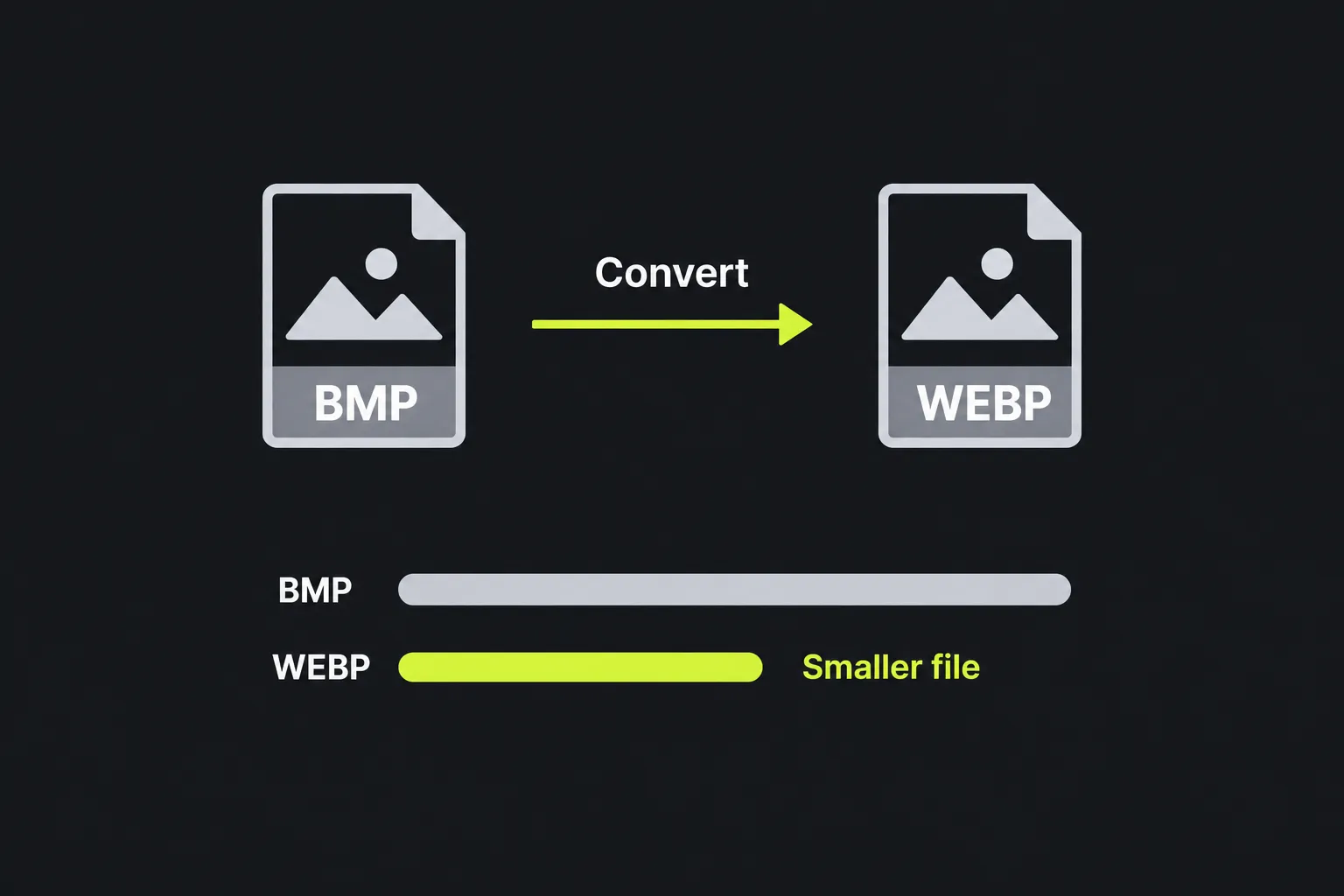
The image data is re-encoded using WebP compression instead of BMP's usual bitmap storage. This generally reduces the file size considerably, although the exact result depends on the BMP, its dimensions, its color detail, and the WebP encoding settings.
| Property | BMP | WebP |
|---|---|---|
| Compression | Commonly uncompressed, although some BMP variants use run-length encoding | Supports both lossy and lossless compression |
| Transparency | Some variants can contain an alpha channel, but support is inconsistent across applications | Supports alpha transparency |
| Animation | Does not provide standard multi-frame animation | The format supports animation |
| Typical file size | Often large because pixel data may be stored with little or no compression | Usually smaller for the same visible image |
| Browser use | Not a practical general-purpose web image format | Supported by current mainstream browsers |
| Desktop compatibility | Long-established and widely recognized by image software | May require a newer application or operating system component |
A single BMP contains one static image, so converting it cannot create an animation. WebP supports animated images as a format, but animation requires multiple frames and timing information from another source.
You should also check transparency after conversion. WebP can represent transparent and partially transparent pixels, but whether they are preserved depends on the source BMP's alpha data and how the converter interprets that BMP variant.
When does converting BMP to WebP make sense?
Conversion makes sense when you need to display a BMP on a website or deliver it with lower storage and bandwidth requirements. BMP files are often produced by older Windows software, screen-capture systems, scanners, or specialized applications, but their size makes them inconvenient as web assets.
- Convert interface graphics before adding them to a website or web application.
- Replace large BMP downloads in documentation with smaller images that browsers can display.
- Prepare screenshots exported by legacy software for an online knowledge base.
- Reduce the storage used by a collection of bitmap images while keeping a web-compatible format.
Conversion is less suitable when another system specifically requires BMP, such as an older application, embedded device, or import process with a fixed file specification. Keep BMP in that workflow rather than assuming it will accept WebP.
Converting a low-quality or previously compressed image to lossless WebP does not restore missing detail. Lossless encoding preserves the pixels provided to it; it cannot reconstruct texture, sharp edges, or color information already removed by an earlier lossy conversion.
What file size should I expect after conversion?
You can usually expect the WebP file to be smaller than the BMP, but there is no fixed reduction ratio. An uncompressed 24-bit BMP stores three bytes per pixel, plus headers and row padding. A 1,920 × 1,080 image therefore contains roughly 6 MB of raw pixel data before accounting for those structural details.
WebP compresses repeated colors, patterns, and other image information instead of storing every pixel in the same direct form. Flat diagrams and screenshots may compress differently from photographs, grainy scans, or images containing noise. A BMP that already uses run-length compression may show a less dramatic reduction than an uncompressed BMP.
WebP's lossy and lossless encoding modes also affect file size. Lossy encoding generally produces a smaller file by discarding some image information. Lossless WebP retains the decoded pixel values but may be larger than a lossy version.
How should I check the converted image?
Open the WebP in its intended destination and compare it with the BMP at normal size and at higher magnification. Pay close attention to text, thin lines, gradients, and transparent edges, since these areas make conversion problems easier to spot.
- Confirm that the converted WebP contains the entire BMP image and has the same orientation.
- Look for halos or colored fringes around transparent objects.
- Check small lettering for blur or block-like compression marks.
- Test the converted WebP in the target browser, website builder, or content management system.
- Compare the BMP and converted WebP file sizes instead of assuming the WebP is smaller.
If the destination does not accept WebP, BMP to JPG may be a better choice for photographs and other opaque images. BMP to ICO is the appropriate option when the source is intended for a Windows icon or favicon workflow.
Frequently asked questions
Can I create a WebP file by renaming .bmp to .webp?
No. Changing a BMP file's extension to .webp does not change the image encoding, so software will still find BMP data inside the file. The pixels must be decoded from BMP and then encoded again as WebP.
Will WebP preserve the color profile and image metadata?
WebP can contain some metadata, including EXIF, XMP, and ICC profile information, but converter support varies.
Why won't an older program open the WebP?
The application may predate WebP support or rely on an older image-decoding component. Try opening the file in a current browser or image editor. If the receiving system cannot be updated, use a format it specifically supports.
Can I convert a monochrome or indexed-color BMP?
Conversion does not preserve the BMP's original storage structure. A one-bit or palette-based source may be represented differently after encoding even when it looks the same, so do not use the WebP as a substitute when exact bit depth or palette indexes are part of a technical requirement.
Should I delete the BMP after converting it?
Keep the BMP if it is the original source, is needed by legacy software, or may be converted again later. Store the WebP as the delivery copy and retain the source separately until you have checked compatibility, transparency, and visual quality.
Similar Tools
Easily convert BMP image files to GIF format with our BMP to GIF converter tool for creating animated images.
Easily convert BMP image files to PNG format with our BMP to PNG converter tool for high-quality images.
Easily convert BMP image files to JPG format with our BMP to JPG converter tool for versatile image usage.
Popular Tools
Create your own custom signature and download it easily with our signature generator tool for personalized e-signatures.
Calculate the size of any text in Bytes (B), Kilobytes (KB), or Megabytes (MB) using our text size calculator tool.
Use the reverse IP lookup tool to find the domain or host associated with any IP address quickly and easily.
Use our ping tool to check the status and response time of any website, server, or port quickly and efficiently.
Generate your free WhatsApp link instantly with our WhatsApp Link Generator. Add a custom message and start chats in one click. No login or coding required.
Digily Link's IP lookup tool provides detailed information about any IP address. Use this free online service to get comprehensive IP data.