BMP to GIF
Easily convert BMP image files to GIF format with our BMP to GIF converter tool for creating animated images.
BMP to GIF is a free tool that converts a BMP image file to GIF format entirely in your browser.
How do I convert a BMP file to GIF?
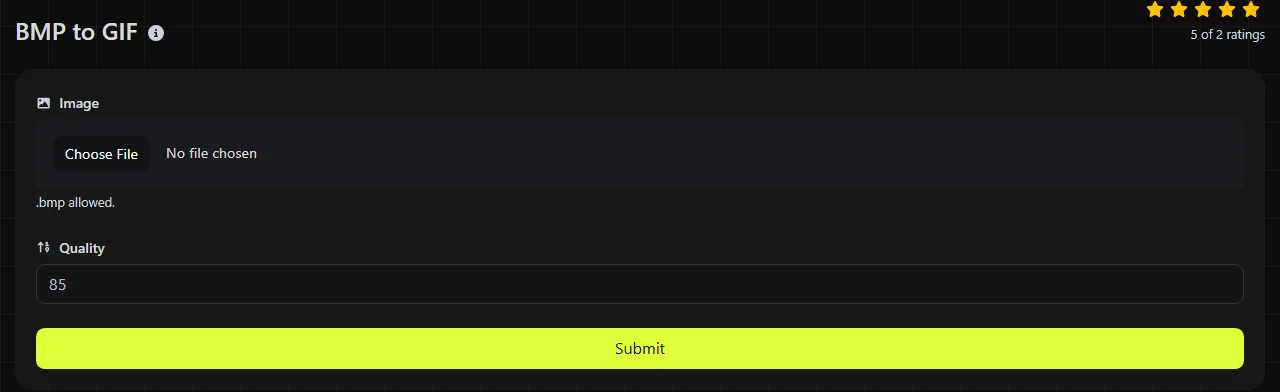
- Select the BMP image you want to convert.
- Run the conversion in your browser.
- Save the resulting GIF, then open it to check its colors, transparency, and dimensions.
The conversion happens entirely in your browser. Your BMP file is never uploaded to a server. This is useful for confidential artwork, internal screenshots, and images you are not allowed to send to a third-party processing service.
What changes when I convert BMP to GIF?
The image changes from a bitmap format that commonly stores full-color, uncompressed pixel data to a compressed, palette-based format limited to 256 colors per frame.
| Property | BMP | GIF |
|---|---|---|
| Compression | Often uncompressed, although some BMP variants support compression | Uses lossless LZW compression after the image has been reduced to indexed colors |
| Color | Can store full-color pixel data | Limited to a palette of up to 256 colors per frame |
| Transparency | Some BMP variants can contain alpha data, but support is inconsistent | One palette color can be fully transparent; partial transparency is unavailable |
| Animation | Does not support animation | Supports multiple timed frames |
| Support | Common in Windows software but rarely used for web delivery | Widely supported by browsers, email clients, and messaging platforms |
GIF compression itself is lossless, but reducing a full-color BMP to 256 colors can discard color information. Photographs may develop visible banding or dithering. A GIF also cannot preserve soft, semi-transparent edges the same way a format with full alpha transparency can.
A single BMP contains one still image. Converting it to GIF does not add extra frames or create movement, even though the GIF format supports animation.
When does converting BMP to GIF make sense?
Conversion makes sense when you need broad web compatibility and the source image uses a small number of distinct colors.
- Convert simple diagrams, pixel art, icons, and interface graphics that fit comfortably within a 256-color palette.
- Use GIF when an older website, email template, or publishing system specifically requires that format.
- Keep the BMP if another application expects editable bitmap data or needs colors that GIF cannot represent accurately.
- Choose BMP to WebP instead for a full-color web image, especially a photograph or an image that needs partial transparency.
Do not convert to GIF in the hope of recovering lost detail. If a JPEG photo was previously saved as BMP, converting that BMP to a lossless GIF does not restore the detail removed by JPEG compression. It only encodes the already degraded pixels in another format.
How large will the converted GIF be?
The GIF will usually be smaller than an uncompressed BMP, but its exact size depends on the dimensions, color patterns, and amount of visual noise.
GIF efficiently compresses flat areas and repeated patterns. A 1,200 × 800 diagram with a plain background and a dozen colors may shrink substantially. A photograph with the same dimensions has many color changes, so it compresses less efficiently and may require dithering to approximate the original colors. For photographs, JPEG or WebP will commonly produce a smaller and more faithful web image.
Very large BMP files can also use considerable browser memory while this tool decodes them and converts their pixels to GIF's indexed-color representation. There is no universal way to predict GIF size based only on the original BMP file size. Pixel dimensions and image content affect GIF palette construction and LZW compression more than the filename or extension.
Worked examples and final checks
- Company logo on a white background: the output is a static GIF with an indexed palette. The white background does not automatically become transparent just because the file format supports transparency.
- Full-color photograph: the output must represent the image with no more than 256 colors in its frame. Expect color reduction and possibly a dithered pattern.
- BMP with soft alpha edges: GIF cannot store partial opacity. Check curved edges, shadows, and antialiased text for a visible fringe.
- Damaged or unusual BMP: older BMP variants and corrupt headers may fail to decode in some software. Try opening and resaving the source in an image editor before converting it again.
After saving the GIF, inspect it at its intended display size. Check small text, gradients, transparent edges, and any colors that must match a brand specification.
Frequently asked questions
Can I create an animated GIF from several BMP files?
An animated GIF can contain multiple frames in a defined order and may specify frame delays. A straightforward conversion of one BMP provides only one frame.
Can I just rename a .bmp file to .gif?
No. Renaming the extension does not change the file's internal encoding, so software may reject it or identify it as BMP data. The pixel data must be decoded and written again using the GIF format.
Will an animated GIF work in email?
Many email clients display animated GIFs, but some show only the first frame or restrict animation through user settings. Put any essential message in the first frame and send a test to the email clients your audience uses.
Does converting the file in my browser make it completely risk-free?
No. This tool never uploads the image, so you do not have to send it to a conversion server. You still need to consider locally installed browser extensions, shared computers, downloaded copies, and your organization's device policies when handling sensitive material.
Should I use GIF or WebP for a website?
Use GIF when a publishing system requires it or when compatibility with older software matters. WebP supports full color, lossy or lossless compression, animation, and partial transparency, so it is generally a better fit for modern web photographs and graphics. Check the final GIF in the browsers and platforms your site supports to confirm that its animation and transparency behave as expected before replacing existing assets.
Similar Tools
Easily convert BMP image files to PNG format with our BMP to PNG converter tool for high-quality images.
Easily convert BMP image files to WebP format with our BMP to WebP converter tool for efficient image compression.
Easily convert BMP image files to JPG format with our BMP to JPG converter tool for versatile image usage.
Popular Tools
Create your own custom signature and download it easily with our signature generator tool for personalized e-signatures.
Calculate the size of any text in Bytes (B), Kilobytes (KB), or Megabytes (MB) using our text size calculator tool.
Use the reverse IP lookup tool to find the domain or host associated with any IP address quickly and easily.
Use our ping tool to check the status and response time of any website, server, or port quickly and efficiently.
Generate your free WhatsApp link instantly with our WhatsApp Link Generator. Add a custom message and start chats in one click. No login or coding required.
Digily Link's IP lookup tool provides detailed information about any IP address. Use this free online service to get comprehensive IP data.