BMP to JPG
Easily convert BMP image files to JPG format with our BMP to JPG converter tool for versatile image usage.
BMP to JPG is a free tool that converts BMP image files into widely supported JPEG files that are usually smaller.
How do I convert a BMP file to JPG?
Select the BMP image, let your browser convert it, then save the resulting JPG file.
- Choose the BMP file you want to convert.
- Wait while the image is processed in your browser.
- Save the JPG and open it to check how it looks before deleting the original.
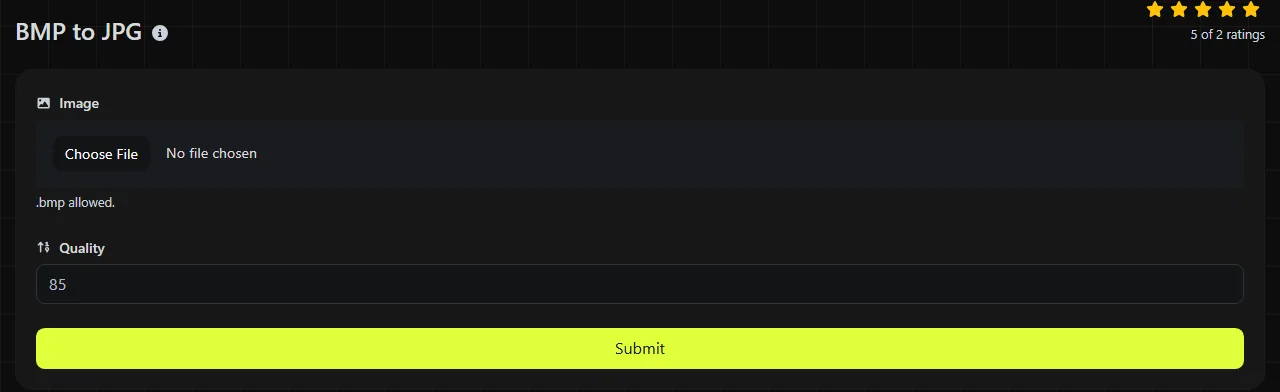
The entire process takes place in your browser. Your BMP file is never uploaded to a server, which is useful when the image contains confidential artwork, internal screenshots, or personal information.
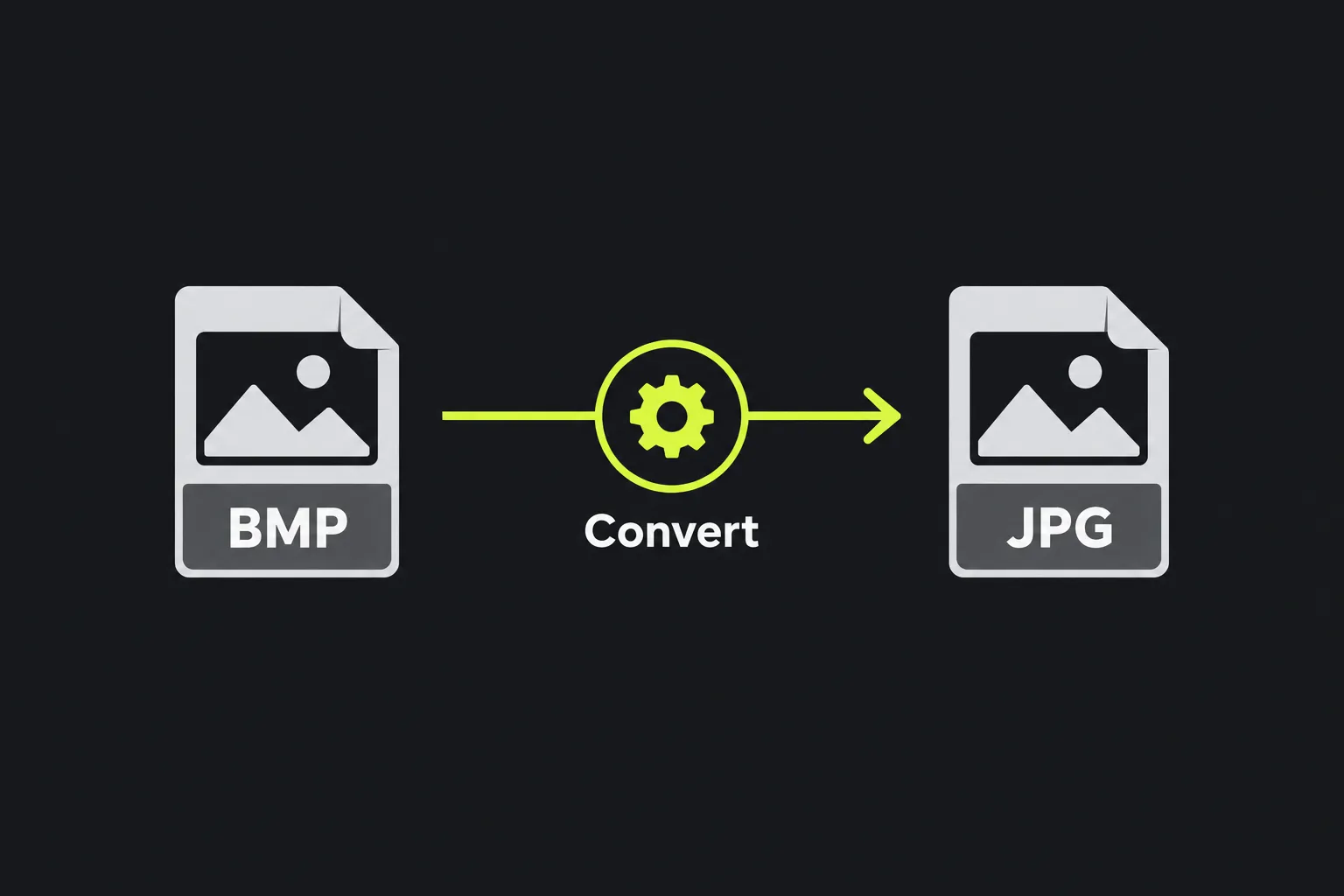
What changes when BMP is converted to JPG?
The image moves from a bitmap format that commonly stores uncompressed pixels to JPEG's lossy compression, which usually produces a much smaller file.
- Compression: Many BMP files contain uncompressed pixel data, although the format also allows some compressed variants. JPG discards some image information to reduce file size.
- Transparency: Some BMP variants can contain an alpha channel, but support varies among applications. JPG cannot store transparency, so transparent pixels must become opaque during conversion. Check their color in the finished image.
- Animation: Standard BMP and JPG files are single still images. Neither format is suitable for an animated sequence.
- Browser support: JPG works reliably in mainstream browsers and is a common choice for website photos. BMP display is less reliable across web publishing systems and other platforms.
- Image quality: JPG compression can soften sharp edges and introduce block-like or halo artifacts, particularly around text, diagrams, and flat areas of color.
A converted JPG contains a rendered version of the image rather than BMP's original pixel representation. Converting it back to BMP later will not recover detail removed by JPEG compression.
How much smaller will the JPG file be?
The JPG will usually be substantially smaller than an uncompressed BMP, but its exact size cannot be predicted from the BMP size alone.
For example, an uncompressed 1,920 × 1,080 BMP with 24 bits per pixel needs about 5.93 MiB for pixel data, plus a small amount for headers and any row padding. A JPG of the same scene may take up hundreds of kilobytes or several megabytes, depending on the image detail and the compression settings used by the encoder.
Photos often compress efficiently because neighboring pixels tend to change gradually. Screenshots containing small text, line drawings, and sharp color boundaries may need more data to avoid visible artifacts. A BMP that already uses compression may also show a less dramatic reduction than its filename suggests.
When is converting BMP to JPG a good idea?
Conversion makes sense when you need a smaller still image with broad compatibility and do not require transparency or exact pixel preservation.
Common examples include placing an old Windows bitmap photo on a website, attaching a scanned image to an email, or importing artwork into a service that accepts JPG but rejects BMP. JPG is also a practical delivery format for photographic material when a modest amount of compression loss is acceptable.
It is usually the wrong choice for logos, interface graphics, diagrams, screenshots with fine text, or images that need a transparent background. BMP to PNG is more suitable when lossless storage and transparency matter. For a Windows shortcut or website favicon, BMP to ICO provides the format expected by many systems.
Converting a poor-quality or previously compressed image to JPG does not improve it. A lossless source prevents further damage before conversion, but it cannot restore detail that was already missing.
How should I handle unusual BMP files?
A valid filename may contain spaces, numbers, punctuation, or accented characters without changing the image data. The file's contents matter more than its name, and simply renaming picture.bmp to picture.jpg does not convert its encoding.
- A damaged or incomplete BMP may fail to decode even when its extension is correct.
- Unusually old BMP variants may use color tables, bit depths, or compression methods that some image decoders do not handle consistently.
- A very large uncompressed bitmap can require considerably more browser memory than its on-disk size while being decoded.
- Images with an alpha channel need to be checked visually because JPG has no representation for transparent pixels.
- Fine lettering and one-pixel lines should be inspected at 100 percent zoom for compression artifacts.
Keep the original BMP until the JPG opens correctly in the application or publishing system where you plan to use it.
Frequently asked questions
Can I create a favicon from the converted JPG?
Some browsers can use a JPG as a site icon, but it cannot provide transparency and is not the conventional format for desktop shortcuts. ICO or PNG is generally a better choice, particularly when several icon sizes are required.
Will image metadata be preserved?
Do not assume that BMP metadata, color profile information, or application-specific fields will carry over to the JPG. Metadata handling depends on the encoder, so inspect the resulting file if color management or embedded information matters to your workflow.
Why do flat colors look slightly different in JPG?
JPEG normally transforms and compresses color information in a way designed primarily for photos. Flat fills and colored text can therefore develop minor shifts, ringing, or blurred boundaries, even when the source BMP looked exact.
Does a .bmp extension prove that the file is a bitmap?
No. File extensions can be changed without altering the underlying data, and an incorrectly named file may actually contain PNG, JPEG, or another format. If an image will not open, check it in a reputable image editor instead of repeatedly renaming it.
Final checks
Open the saved JPG and inspect the areas that were transparent in the source BMP, along with any text and sharp edges. Confirm that the file works on its intended website or platform. Keep the BMP when it is the only lossless original, especially if you may need another export later.
Similar Tools
Easily convert BMP image files to PNG format with our BMP to PNG converter tool for high-quality images.
Easily convert BMP image files to WebP format with our BMP to WebP converter tool for efficient image compression.
Easily convert BMP image files to GIF format with our BMP to GIF converter tool for creating animated images.
Popular Tools
Create your own custom signature and download it easily with our signature generator tool for personalized e-signatures.
Calculate the size of any text in Bytes (B), Kilobytes (KB), or Megabytes (MB) using our text size calculator tool.
Use the reverse IP lookup tool to find the domain or host associated with any IP address quickly and easily.
Use our ping tool to check the status and response time of any website, server, or port quickly and efficiently.
Generate your free WhatsApp link instantly with our WhatsApp Link Generator. Add a custom message and start chats in one click. No login or coding required.
Digily Link's IP lookup tool provides detailed information about any IP address. Use this free online service to get comprehensive IP data.