Password generator
Create strong and secure passwords with custom length and settings using our password generator tool.
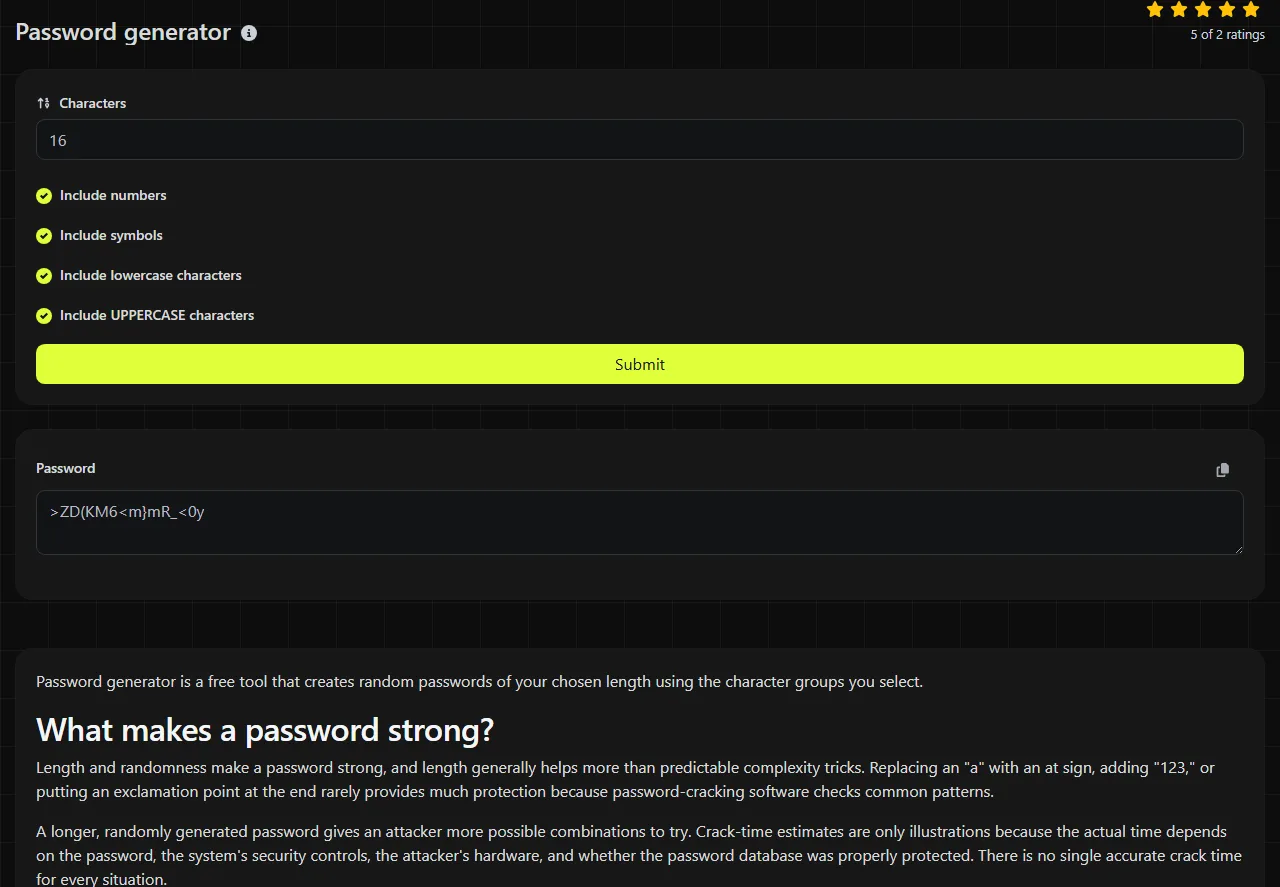
Password generator is a free tool that creates random passwords of your chosen length using the character groups you select.
What makes a password strong?
Length and randomness make a password strong, and length generally helps more than predictable complexity tricks. Replacing an "a" with an at sign, adding "123," or putting an exclamation point at the end rarely provides much protection because password-cracking software checks common patterns.
A longer, randomly generated password gives an attacker more possible combinations to try. Crack-time estimates are only illustrations because the actual time depends on the password, the system's security controls, the attacker's hardware, and whether the password database was properly protected. There is no single accurate crack time for every situation.
Password reuse is a common everyday risk. If one service suffers a data breach, attackers may try the exposed email address and password on email providers, shopping accounts, and social networks. Every account should therefore have its own password.
A passphrase made from several randomly selected words is a valid alternative when you need to type or remember the secret. It should be long, unpredictable, and unique. This tool creates character-based passwords rather than word-based passphrases.
How do I use the password generator?
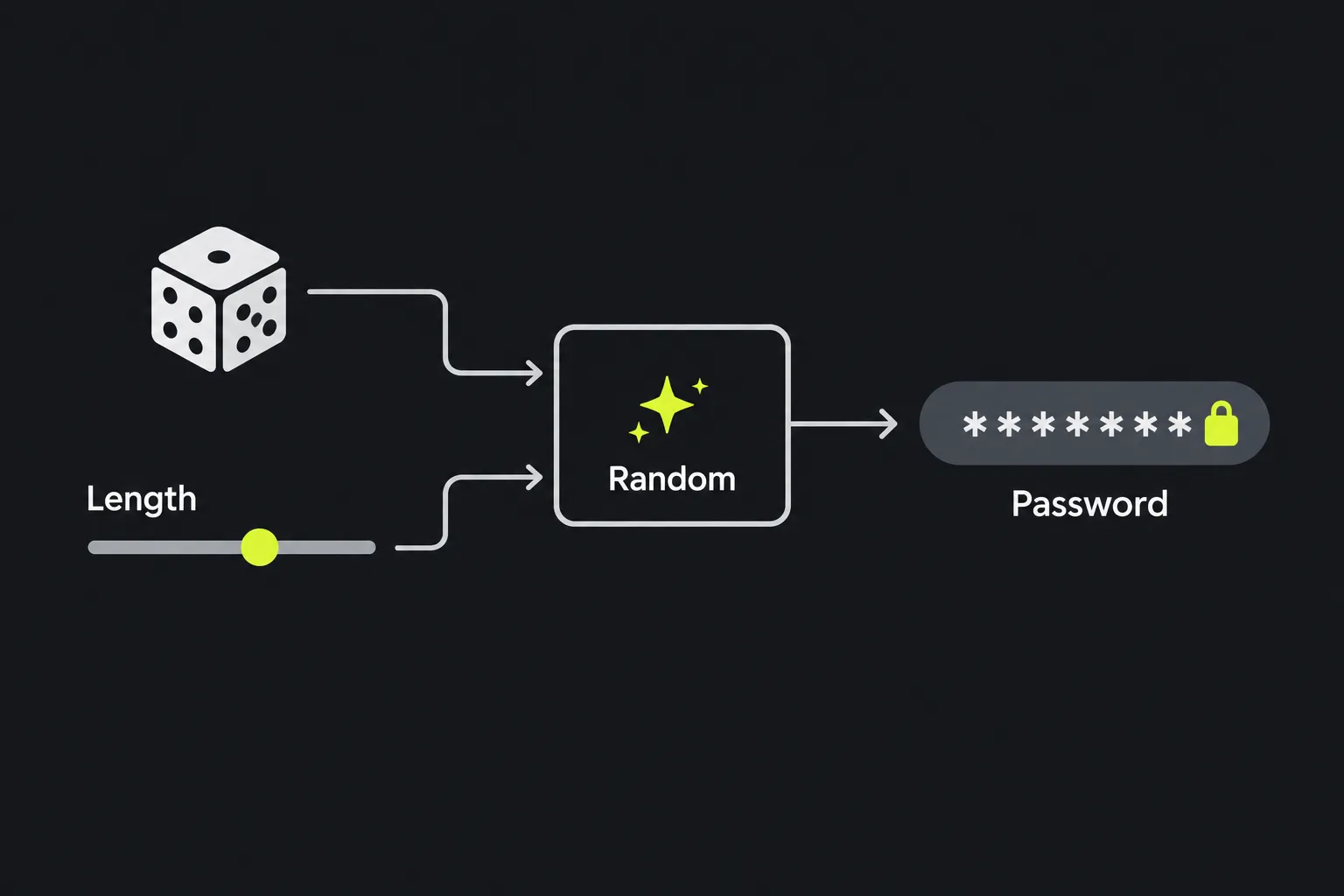
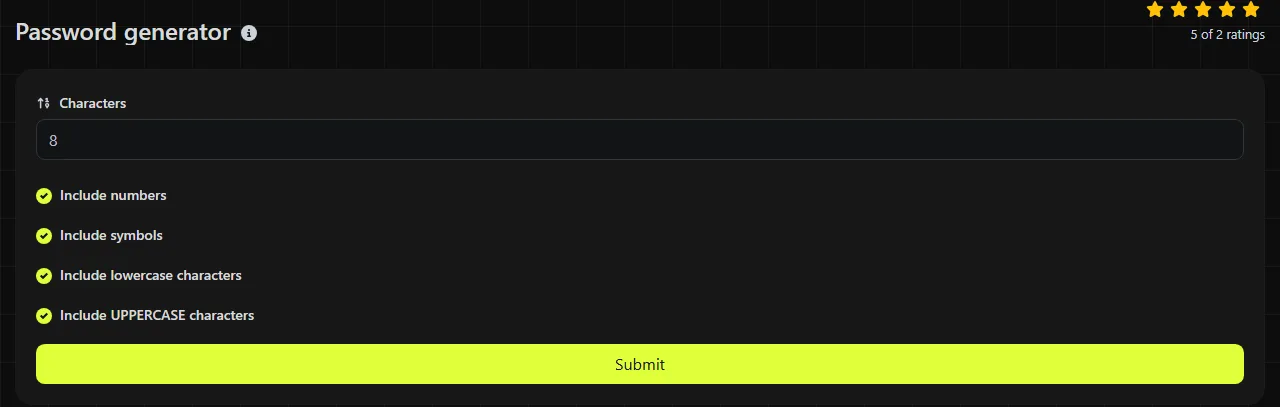
Choose a length under Characters, select the character groups allowed by the receiving service, then generate the password and copy it accurately.
- Set a suitably long character count. The tool allows a maximum of 2,048 characters, although target services may have lower limits.
- Use Include lowercase characters and Include UPPERCASE characters unless the account has a reason to exclude either group.
- Select Include numbers and Include symbols when the service accepts them.
- Check the site's password rules before saving the result. Some forms impose their own minimum or maximum length or require specific character types.
- Store the finished password in a password manager and test the sign-in before closing an account setup or password-change page.
The generator uses PHP's random_int function, which is intended for cryptographically secure random selection. This distinguishes password generation from noncryptographic pseudorandom generation.
What do the character settings mean?
The settings control which broad character groups can be used to build the generated password. Select at least one group, and check the finished result against any password policy that requires a specific type of character.
- Include numbers allows digits such as 0 to 9.
- Include symbols allows punctuation or special characters from the generator's symbol set.
- Include lowercase characters allows lowercase letters.
- Include UPPERCASE characters allows capital letters.
For example, selecting a length of 20 along with lowercase letters, uppercase letters, numbers, and symbols produces a random 20-character password drawn from the enabled groups.
There is no free-text field for words, names, or existing passwords, so spaces, accented letters, and non-Latin scripts are not provided as input. Do not assume every website accepts every generated symbol. If a form rejects the result, follow that form's stated rules instead of repeatedly editing a strong password into a memorable pattern.
Privacy and server-side generation
Password generation takes place on the server. Your selected settings travel to the server over HTTPS and are not stored. It would be incorrect to say that the work stays entirely on your device.
HTTPS protects information while it travels between the browser and server, provided the connection is valid. A compromised device is a separate endpoint risk and may expose data before encryption or after decryption. Avoid generating or handling account passwords on a shared computer, an unattended screen, or a device that may contain malware. No online generator can protect a password after it has been copied into an insecure application or exposed through the clipboard.
How should I store a generated password?
Store a generated password in a reputable password manager rather than in a notes file, spreadsheet, email draft, or document labeled with the account name. A password manager keeps each account's credentials together, can fill in long random passwords, and reduces the temptation to reuse a password.
For an email account, online banking login, Microsoft 365 account, or router administration page, save the exact site address with the credential. This helps you avoid entering the password on a lookalike phishing page. Enable multi-factor authentication where the service supports it, preferably with an authenticator app or security key when its configuration and user verification provide another factor. Passkey sign-in is a separate option and is not necessarily multi-factor.
Keep the password manager's recovery information somewhere secure. A long generated password is of little use if the account holder loses both the saved credential and the available recovery method. The Password strength checker can help assess an existing password, but do not treat a strength score as proof that a reused or exposed password is safe.
Common password generation mistakes
- Generating one strong password and reusing it across multiple accounts.
- Shortening the output because it seems inconvenient to type.
- Changing several random characters into a name, date, or keyboard pattern.
- Saving passwords in an unprotected notes file or emailing them to yourself.
- Ignoring a website's maximum length or allowed-symbol rules.
- Assuming complexity alone makes up for a short password.
No generator can prevent phishing, malware, account-recovery attacks, or a service from storing passwords poorly. Use a unique generated password as one part of account security, along with software updates, multi-factor authentication, and careful handling of recovery codes.
Frequently asked questions
Can a website reject a randomly generated password?
Yes. Websites can set maximum lengths, prohibit certain symbols, or require at least one character from specified groups. Read the validation message carefully and generate another compatible password instead of trimming characters without checking the final length.
Should I change a strong password regularly?
Routine changes are usually unnecessary unless an employer or service requires them. Change the password promptly if it appears in a breach, has been shared, was entered on a suspicious page, or may have been exposed on a compromised device.
Is a 2,048-character password practical?
Usually not. Although the generator's upper limit is 2,048 characters, the target service or storage software may enforce a lower limit. Choose a long password that the target service accepts and that your password manager can store and fill reliably.
Can I use a generated password for Wi-Fi?
Yes, as long as the router and connecting devices accept its length and characters. Very long passwords or awkward symbols can be inconvenient when entering credentials on televisions, printers, and game consoles, so check compatibility before updating every device.
Could the generator produce the same password twice?
A collision is theoretically possible because random generation always has a finite set of outputs. With a sufficiently long password and a broad character set, accidental duplication is not a practical everyday concern. Still, save each credential under the correct account and check the entry before relying on it.
Similar Tools
Ensure your passwords are strong and secure with our password strength checker tool, offering detailed feedback.
Popular Tools
Create your own custom signature and download it easily with our signature generator tool for personalized e-signatures.
Calculate the size of any text in Bytes (B), Kilobytes (KB), or Megabytes (MB) using our text size calculator tool.
Use the reverse IP lookup tool to find the domain or host associated with any IP address quickly and easily.
Use our ping tool to check the status and response time of any website, server, or port quickly and efficiently.
Generate your free WhatsApp link instantly with our WhatsApp Link Generator. Add a custom message and start chats in one click. No login or coding required.
Digily Link's IP lookup tool provides detailed information about any IP address. Use this free online service to get comprehensive IP data.