GIF to BMP
Easily convert GIF image files to BMP format with our GIF to BMP converter tool for high-quality images.
GIF to BMP is a free tool that converts a GIF image to a BMP file entirely in your browser.
How do I convert a GIF to BMP?
Select your GIF file, run the conversion, and then save the resulting BMP file to your device.
- Choose the GIF image you want to convert to BMP.
- Start the GIF-to-BMP conversion and wait for your browser to create the BMP.
- Save the BMP and open it in the application where you plan to use it.
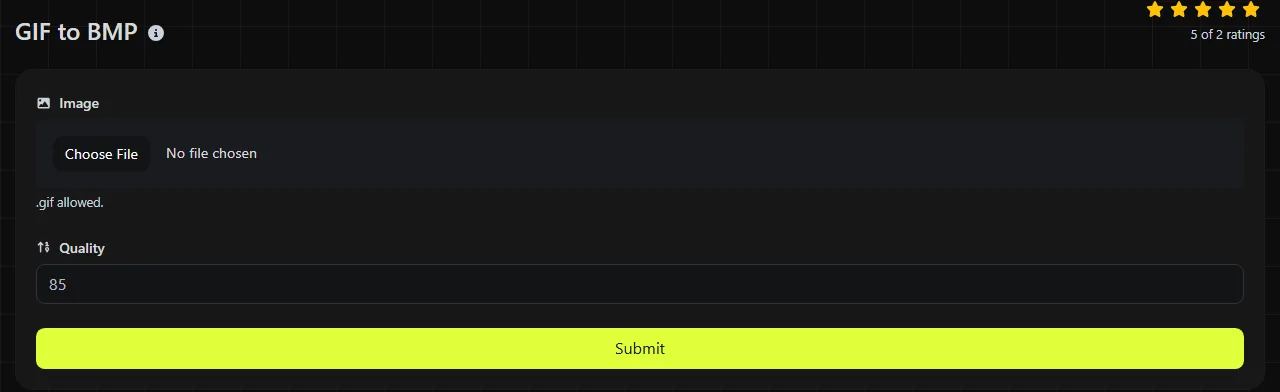
The GIF-to-BMP conversion happens entirely in your browser. Your GIF is never uploaded to a server, which is important when the image contains confidential artwork, internal diagrams, or other material you cannot send to a third party.
What changes when you convert GIF to BMP?
The image changes from a compressed, palette-based web format to a bitmap format that is commonly uncompressed and usually much larger.
- Color: GIF uses an indexed palette with no more than 256 colors in each frame. BMP can store a wider range of colors, but conversion cannot recreate colors or gradients that were already lost when the GIF was made.
- Transparency: GIF supports simple transparency by marking one palette color as transparent. BMP has several variants, and transparency support is inconsistent across applications, so do not rely on transparent GIF pixels remaining transparent.
- Animation: GIF can contain several timed frames. Ordinary BMP files are still images and do not preserve GIF animation.
- Compression: GIF uses lossless LZW compression. BMP data is often uncompressed, although the format also defines some compression methods.
- Software support: GIF is widely supported by browsers, messaging services, and publishing platforms. BMP is widely recognized by desktop image software, particularly on Windows, but it is less suitable for websites and online distribution.
For example, a static GIF diagram becomes a still BMP image. An animated loading icon cannot remain animated in an ordinary BMP.
When does converting GIF to BMP make sense?
Conversion makes sense when older software, a Windows-based workflow, or a specialized application specifically requires a BMP file.
BMP may also be useful as a simple intermediate format for software that cannot import GIF directly. Keep the original GIF alongside the converted BMP, especially if the GIF contains transparency or animation.
Converting an image just to improve its quality does not make sense. GIF compression is lossless, but GIF still has a limited color palette. Saving the image as BMP does not restore smoother gradients, removed colors, or details missing from the source.
For web use, BMP is rarely a practical destination because its files are usually larger. GIF to PNG is a better choice for a static image that needs lossless storage or transparency. GIF to WebP is more suitable when web performance or modern animation support is the priority.
What should I expect from the file size and quality?
A BMP will usually be substantially larger than its source GIF because GIF compresses repeated patterns and stores palette references, while common BMP files store color information for every pixel with little or no compression.
The exact size depends on the image dimensions, BMP bit depth, and row padding. As a rough example, an uncompressed 24-bit bitmap needs about three bytes per pixel before accounting for headers and padding. A 1,000 by 1,000 pixel image therefore requires roughly 3 MB of pixel data, even if its GIF version is much smaller.
A larger output file does not mean the picture has gained quality. A 256-color GIF converted to a 24-bit BMP may have room to represent more colors, but its pixels still come from the original 256-color image.
How do animation, transparency, and problematic files affect conversion?
Animation and transparency require checking because BMP cannot represent every GIF behavior in the same portable way.
- An animated GIF contains separate frames, delays, and possibly looping instructions. An ordinary BMP has no equivalent animation timeline.
- Transparent GIF pixels may get a solid background if the BMP encoder or receiving application does not preserve an alpha channel.
- GIFs with very large dimensions can produce a much larger BMP and may use substantial browser memory during conversion.
- A damaged or incomplete GIF may not decode correctly during GIF-to-BMP conversion. Changing the filename or extension cannot repair its image data.
- Spaces, punctuation, and accented characters in a filename do not alter the image pixels, although older applications may handle unusual filenames poorly.
GIFs can also use partial animation frames that depend on earlier frames. This makes animated input more complex than a folder of independent pictures. If you need every frame, use a frame-extraction workflow instead of assuming that one BMP will contain the full animation.
Frequently asked questions
Can I use the converted BMP as a website favicon?
BMP is a poor choice for a favicon because browser and platform conventions favor ICO, PNG, and, in some contexts, SVG. If a particular system explicitly asks for BMP, follow its specification, including any required pixel dimensions and bit depth.
Will GIF comments and other metadata stay in the BMP?
Do not assume they will. GIF can contain comments and application-specific extension blocks, while BMP has a different and more limited metadata structure. Keep the original GIF if its comments or application-specific extension blocks are important.
Does BMP support CMYK printing?
Typical BMP workflows use RGB color rather than press-ready CMYK data. Converting a GIF to BMP does not create a CMYK profile or prepare the image for commercial printing. Use an image editor with color management controls when a printer provides a specific profile.
Final checks
Open the saved BMP in the target application and check its background color, dimensions, and file size. Keep the GIF as your source copy until you know the BMP works in the intended workflow.
Similar Tools
Easily convert GIF image files to ICO format with our GIF to ICO converter tool for creating favicons.
Easily convert GIF image files to PNG format with our GIF to PNG converter tool for high-quality images.
Easily convert GIF image files to JPG format with our GIF to JPG converter tool for versatile image usage.
Popular Tools
Create your own custom signature and download it easily with our signature generator tool for personalized e-signatures.
Calculate the size of any text in Bytes (B), Kilobytes (KB), or Megabytes (MB) using our text size calculator tool.
Use the reverse IP lookup tool to find the domain or host associated with any IP address quickly and easily.
Use our ping tool to check the status and response time of any website, server, or port quickly and efficiently.
Generate your free WhatsApp link instantly with our WhatsApp Link Generator. Add a custom message and start chats in one click. No login or coding required.
Digily Link's IP lookup tool provides detailed information about any IP address. Use this free online service to get comprehensive IP data.