Ping
Ping is a free tool that checks whether a website, server or port can be reached and reports its response time, status code or error.
What does a ping check actually test?
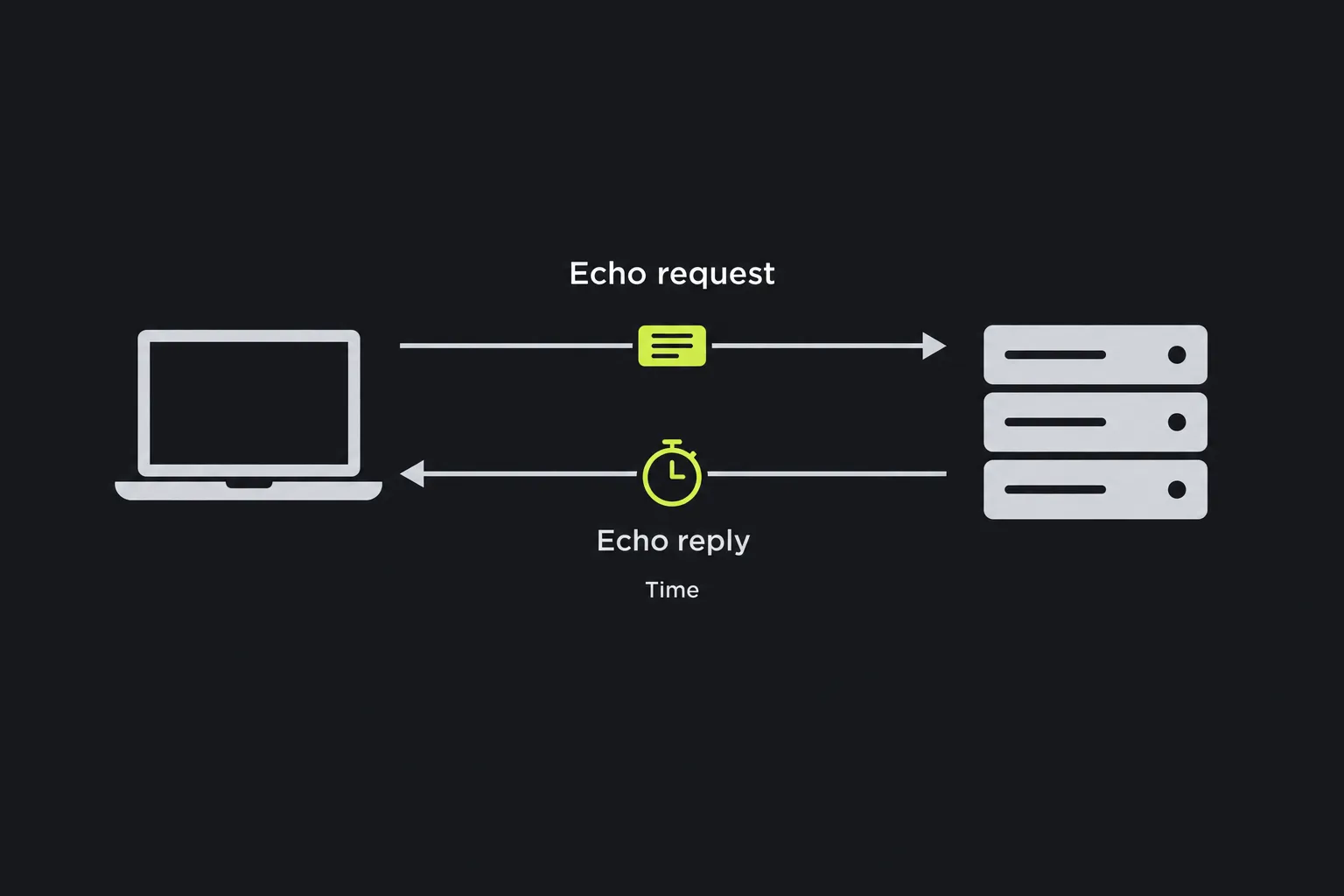
A ping check tests whether a remote system responds from the network where the check is run. The exact test depends on the selected protocol.
- HTTP(s) checks a web URL using HTTP or HTTPS. It is suitable for websites, APIs and web services because it can return an HTTP response status code.
- Ping (ICMP) checks whether a host responds to Internet Control Message Protocol echo traffic. This is the conventional network meaning of "ping".
- Host / Port checks whether a specified network port can be reached on a host. Typical examples include an SMTP mail server, a POP server or a database endpoint.
These checks answer slightly different questions. An ICMP response shows that a host accepts and answers that type of network traffic, but it does not prove that its website or mail service works. An HTTP response provides a status code, which may indicate a fault. A successful port check shows that the port is reachable, not that an application-level login or database query will succeed.
How do I use the Ping tool?
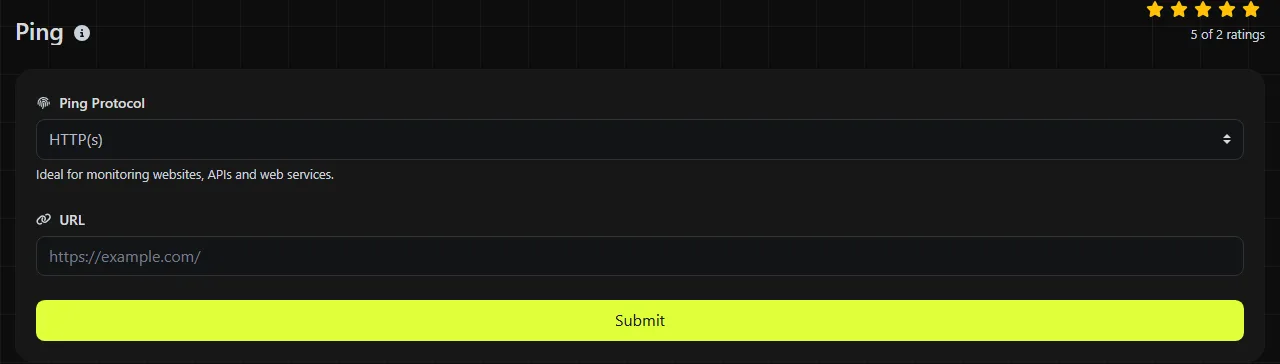
Select the appropriate Ping Protocol, enter the corresponding address and run the check. Use the type of input expected by that protocol.
- Choose HTTP(s) and enter a complete URL, such as https://www.example.com/status, when diagnosing a website, API endpoint or web service.
- Choose Ping (ICMP) and enter a Host, such as server.example.com or an IP address, when checking whether a server answers ICMP traffic.
- Choose Host / Port, enter the Host, then provide the numeric Port. For example, an SMTP submission service commonly uses port 587, while HTTPS commonly uses port 443.
Do not add a URL path to a host-only check. Conversely, an HTTP check may need the full path if the problem affects one API route or page rather than the whole domain. Transport port numbers use 16-bit values from 0 to 65535. Port 0 is reserved and is not normally used as a service port. Spaces, commas and labels such as "port 443" are not part of a port number.
The Ping check runs on the server. Your Ping input travels to that server over HTTPS and is not stored. Avoid placing passwords, API keys or other secrets in a URL because URLs may expose them to the remote service and through other parts of normal web infrastructure.
How do I read the ping result?
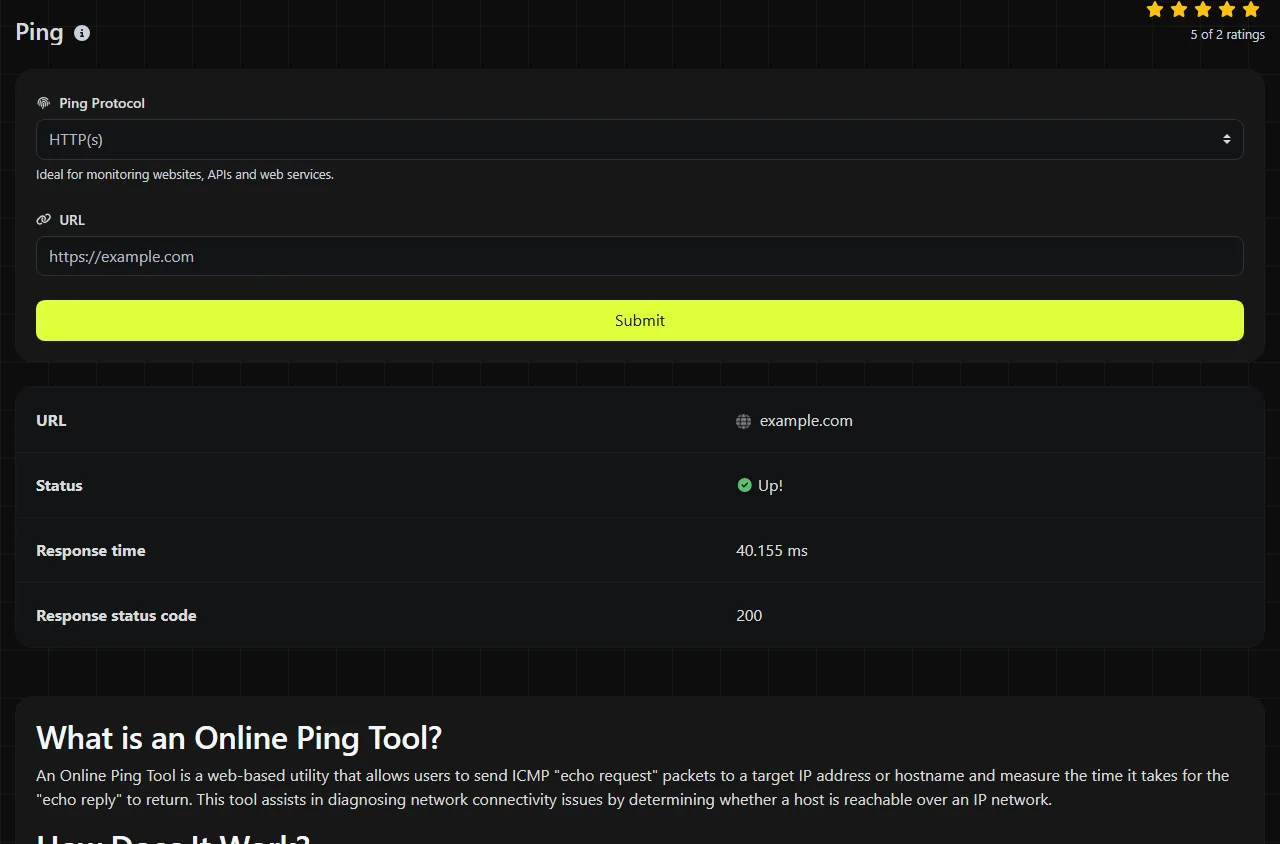
Read the availability result first, then use the timing, HTTP status or error result to narrow down the problem.
| Result field | What it tells you |
|---|---|
| Up! | The tool's Up! status. |
| Down! | The tool's Down! status. |
| Response time | How long the check took. Compare repeated results rather than treating one reading as a permanent measure. |
| Response status code | The HTTP status code received during a website or API check, where applicable. |
| Error | The error result returned by the tool. |
For example, a hypothetical HTTP result might show Up!, a response time of 180 ms and status code 200. A 200 status code indicates that the request succeeded. A 404 response means that the origin server did not find a current representation for the target resource or is unwilling to disclose that one exists. A 5xx (Server Error) response belongs to the Server Error class; the precise cause depends on the particular status code.
A Down! result does not always mean the whole machine is offline. A firewall may block ICMP while HTTPS continues to work, or one port may be closed while other services remain available. Run the check that matches the service users are trying to reach.
Typical faults ping reveals
For a website that does not load, begin with HTTP(s) and the exact affected URL. If the domain answers but one page returns 404, check the route, rewrite rules or deployment. If HTTPS produces a certificate warning in a browser, use SSL Lookup for certificate details rather than relying on ping alone. HTTP headers lookup can also show redirects and response headers.
If email does not arrive, use Host / Port with the mail server hostname and the port configured in the sending or receiving application. A reachable SMTP port does not prove that the server accepts a particular message. Authentication failures, spam filtering, DNS mail records and recipient policies sit beyond a basic port check.
After moving a site to a new host, check its hostname with ICMP or HTTP as appropriate. Verify the DNS record and allow for cached answers. Whois Lookup may help confirm domain registration information, but it does not show which DNS answer every resolver currently holds.
Why can DNS caching make a correct result look wrong?
DNS caching can cause the tool's server and your own device to resolve the same hostname to different addresses for a while. Recursive resolvers retain DNS answers according to their time to live, often called the TTL, and some applications or operating systems also keep local caches.
"Propagation" is commonly used for this delay, although DNS records do not spread everywhere in one coordinated process. Each cache expires on its own schedule. A recently changed record may therefore work on one connection while another still uses the previous address.
Because this tool runs the check on its server, its result reflects that server's network path and DNS view at the time. It cannot prove that every UK broadband provider, mobile network or corporate resolver sees the same destination. Compare the result with a local check and query the relevant DNS records when location-specific behaviour matters.
Frequently asked questions
What happens with accented or non-Latin domain names?
IDNA converts eligible Unicode domain labels to ASCII A-labels. Punycode is the encoding algorithm used within relevant A-labels. Browsers often convert the readable spelling automatically, but host fields and diagnostic systems may require the A-label form. Check the spelling carefully because visually similar Unicode characters can refer to different domains.
Is a low response time guaranteed to stay low?
No. Response time varies with routing, network congestion, server load and physical distance. Record several checks at comparable times, and investigate sustained changes rather than treating a single slow response as proof of a fault.
Before changing DNS, firewall or server settings, confirm that you checked the exact hostname, URL path and port used by the affected service. Save the time of the result and compare it with local logs so that both sides of the connection can be matched.
Similar Tools
Use the reverse IP lookup tool to find the domain or host associated with any IP address quickly and easily.
Use our DNS lookup tool to quickly find A, AAAA, CNAME, MX, NS, TXT, SOA DNS records of any host and get detailed information.
Digily Link's IP lookup tool provides detailed information about any IP address. Use this free online service to get comprehensive IP data.
Popular Tools
Create your own custom signature and download it easily with our signature generator tool for personalized e-signatures.
Calculate the size of any text in Bytes (B), Kilobytes (KB), or Megabytes (MB) using our text size calculator tool.
Use the reverse IP lookup tool to find the domain or host associated with any IP address quickly and easily.
Use our ping tool to check the status and response time of any website, server, or port quickly and efficiently.
Digily Link's IP lookup tool provides detailed information about any IP address. Use this free online service to get comprehensive IP data.
Generate your free WhatsApp link instantly with our WhatsApp Link Generator. Add a custom message and start chats in one click. No login or coding required.