PNG to BMP
Convert PNG image files to BMP format easily with our PNG to BMP converter tool for high-quality image outputs.
PNG to BMP is a free tool that converts a PNG image to a BMP bitmap file in your browser.
How do I convert PNG to BMP?
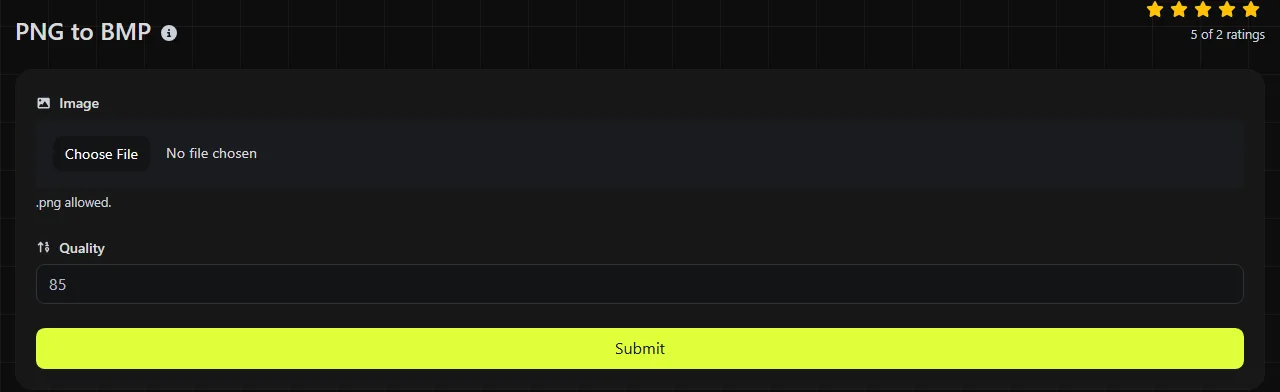
Use the tool to convert a PNG image to BMP. The entire process takes place in your browser, and the input image is never uploaded to a server.
Keeping PNG-to-BMP conversion local is useful for screenshots, draft artwork, and other images you would rather not send to an external conversion service. Very large images can still take time or use substantial memory because the browser must decode the PNG and create the BMP on your device.
What changes when PNG becomes BMP?
A PNG usually changes from a compressed, web-friendly image into a simpler bitmap that is commonly stored without compression. Both formats can represent pixels without JPEG-style quality loss, but they handle compression, transparency, and compatibility differently.
- Compression PNG uses lossless DEFLATE compression. BMP files are commonly uncompressed, although the format also defines some compressed variants, such as run-length encoding.
- Transparency PNG has well-supported alpha transparency. Some BMP variants can store an alpha channel, but many applications ignore it or display transparent areas incorrectly. The exact BMP variant produced by this tool is not specified, so check logos and images with transparent edges.
- Animation PNG can be animated, while BMP is static. Animated PNG files can contain several frames, but BMP cannot preserve an animation. How the converter handles an animated PNG is not specified, so use a frame-extraction tool if individual frames matter.
- Platform support PNG is widely supported by browsers, content management systems, and design applications. BMP is closely associated with Windows and older desktop software. Many current image applications can open it, but it is a poor choice for normal website delivery.
Converting to BMP does not improve an image's existing detail. If a PNG was previously created from a heavily compressed JPEG, saving it as a lossless BMP will preserve the visible artifacts rather than restore the original photograph.
When should I use BMP instead of PNG?
Use BMP when a Windows application, piece of laboratory equipment, legacy game tool, or older print workflow specifically requires bitmap input. It can also be convenient for software that supports BMP input but not PNG.
Keep the PNG when you need reliable transparency, smaller storage requirements, or an image for a website. For web delivery, PNG to WebP may reduce the transfer size while retaining modern image capabilities. For an opaque photograph where some quality loss is acceptable, PNG to JPG is usually more suitable than BMP.
There is little benefit to converting a normal website graphic to BMP simply because BMP is often uncompressed. The page will usually have a larger asset to download without gaining any extra visual detail.
File size and worked examples
A BMP will usually be larger than its source PNG because PNG efficiently compresses repeated colors and patterns, while a typical BMP stores color values for every pixel. The exact output size depends on the BMP bit depth, headers, row padding, and whether the selected BMP variant uses compression.
For example, an uncompressed 1,920 by 1,080 image at 24 bits per pixel needs roughly 6.22 MB for pixel data and a small header. At 32 bits per pixel, the pixel data is about 8.29 MB. These are format calculations, not guaranteed output sizes for this converter.
- A 256 by 256 PNG logo with large areas of one color may be only a fraction of the size of its uncompressed BMP equivalent. Check its transparent corners after conversion.
- A detailed screenshot may also grow substantially because PNG compresses repeated interface colors and flat backgrounds well.
- A noisy photographic PNG may already be large, so the difference can be less pronounced, although BMP will rarely be the smaller web file.
Why might a PNG file fail to convert?
Invalid PNG image data or insufficient browser memory can prevent a conversion. Renaming another format from photo.jpg to photo.png does not turn its contents into PNG data.
Spaces, punctuation, numbers, and accented characters in a filename do not inherently affect the resulting BMP's pixels. However, older software receiving the BMP may reject long filenames or non-Latin characters, so a short name such as site-logo.bmp can be safer for legacy systems.
An empty file is not valid PNG input for BMP conversion. A damaged or incomplete download may also retain the .png extension while lacking the data needed to convert it to BMP.
Frequently asked questions
Can I convert a PNG with more than 256 colors to BMP?
Yes, BMP is not limited to a 256-color palette. It supports several color depths, including true-color bitmap variants. The output encoder determines the specific color depth, and the BMP variant selected by this tool is not stated.
Why does my BMP have a black or white background?
The generated BMP may omit usable alpha data or have its transparency flattened. The receiving application may also fail to recognize BMP alpha transparency. If transparency must work consistently, keep the PNG or flatten the image against your intended background before using BMP.
Can I use the converted BMP as a website image?
Some browsers support BMP, but it is not a reliable or efficient format for web publishing. PNG is the safer choice for transparent graphics, while WebP or JPEG generally works better for images where download size matters.
Is it safe to convert a confidential PNG?
The image is processed entirely in your browser and is never uploaded to a server by this tool.
Final checks
Open the resulting BMP in the application that requested it instead of relying only on a thumbnail preview. Check transparent areas, color appearance, orientation, and file size, and keep the original PNG in case the receiving software needs a different BMP color depth or cannot interpret the converted file correctly.
Similar Tools
Convert PNG image files to JPG format easily with our PNG to JPG converter tool for versatile image usage.
Convert PNG image files to WebP format easily with our PNG to WebP converter tool for efficient image compression.
Easily convert PNG image files to GIF format with our PNG to GIF converter tool for animated images.
Popular Tools
Create your own custom signature and download it easily with our signature generator tool for personalized e-signatures.
Calculate the size of any text in Bytes (B), Kilobytes (KB), or Megabytes (MB) using our text size calculator tool.
Use the reverse IP lookup tool to find the domain or host associated with any IP address quickly and easily.
Use our ping tool to check the status and response time of any website, server, or port quickly and efficiently.
Generate your free WhatsApp link instantly with our WhatsApp Link Generator. Add a custom message and start chats in one click. No login or coding required.
Digily Link's IP lookup tool provides detailed information about any IP address. Use this free online service to get comprehensive IP data.