PNG to WebP
Convert PNG image files to WebP format easily with our PNG to WebP converter tool for efficient image compression.
PNG to WebP is a free tool that converts PNG image files to WebP files in your browser.
How do I convert PNG to WebP?
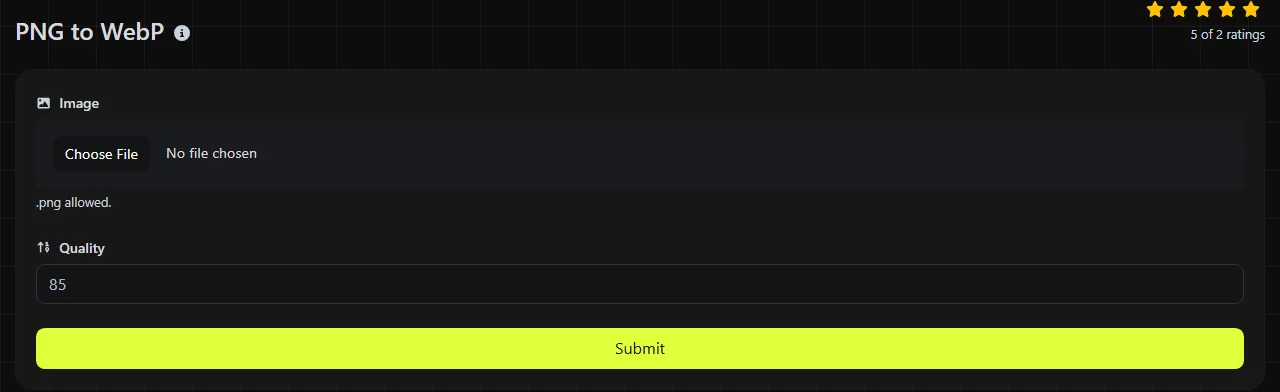
Add the PNG file, convert it, and save the resulting WebP file. Everything happens entirely in your browser. Your image is never uploaded to a server, which is useful when the file contains private artwork, internal screenshots, or material that has not been published yet.
- Select the PNG image you want to convert.
- Convert it and save the generated WebP file to your device.
Open the saved WebP file to verify the result before replacing the original. Check transparent areas, fine text, gradients, and sharp edges at normal viewing size. Keep the source PNG until the WebP works correctly on the website, content management system, or application where you plan to use it.
What changes when PNG becomes WebP?
The image moves from PNG's lossless compression format to WebP, a web-focused format that supports both lossless and lossy compression. The converter's published details do not specify which WebP encoding mode it uses, so do not assume the result is lossless without checking it.
| Property | PNG | WebP |
|---|---|---|
| Compression | Lossless compression using the PNG format | Supports lossless and lossy compression |
| Transparency | Supports full alpha transparency | Supports alpha transparency |
| Animation | PNG supports static and animated images, while ordinary static PNGs contain only one image | The format supports animation |
| Typical file size | Often larger for photographs and detailed website images | Often smaller, particularly when lossy compression is suitable |
| Support | Accepted by almost all image software, browsers, and publishing systems | Supported by current major browsers, but some older or specialized software may not accept it |
Converting a static PNG does not create an animation. Likewise, format conversion cannot add missing detail. If a photograph was previously compressed as a JPG and then saved as PNG, converting that PNG to lossless WebP will not restore the quality removed by the earlier JPG compression.
How much smaller will the WebP file be?
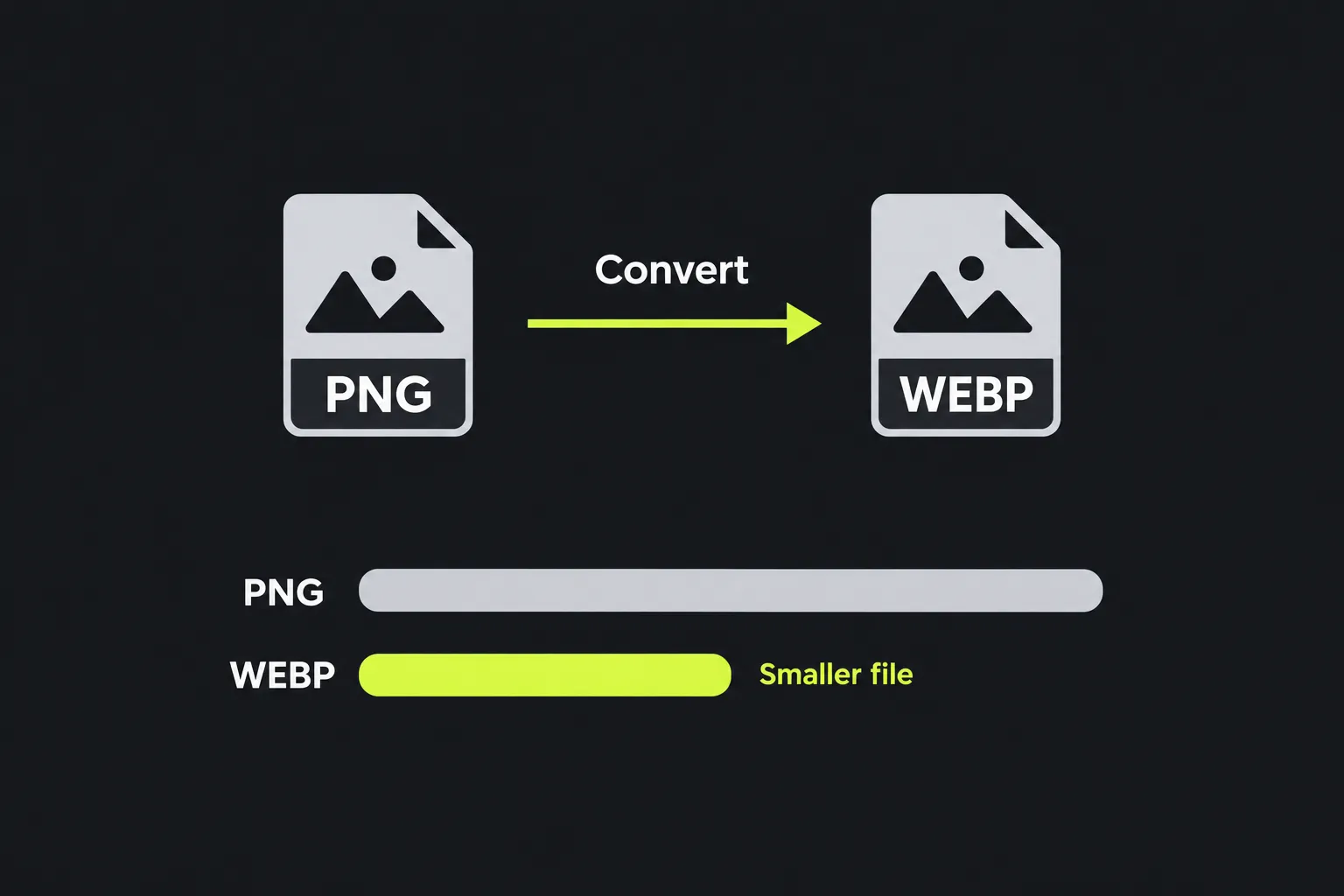
The WebP file will often be smaller than the PNG, but there is no fixed percentage, and the result can occasionally be similar in size or larger. Image content, dimensions, transparency, color complexity, and the encoder's compression settings all affect the result.
- A large photograph stored as PNG will commonly see a substantial reduction because PNG is inefficient for continuous photographic detail.
- A user interface screenshot with flat colors and sharp text may already compress well as PNG, so the reduction may be modest.
- A tiny logo or icon may save only a few kilobytes, making compatibility more important than the raw savings.
- An image containing noisy textures, grain, or complex transparency can remain relatively large in either format.
For example, an input named product-photo.png produces an image in WebP format, but its exact byte size cannot be calculated from the filename or pixel dimensions alone. Compare the saved file sizes directly and inspect the WebP for visible artifacts before publishing it.
When should I convert PNG images to WebP?
Convert PNG to WebP when a website needs smaller image downloads and every part of the delivery chain accepts WebP. Typical cases include product photographs exported as oversized PNG files, large article illustrations, dashboard screenshots, and repeated thumbnail images.
WebP is usually a practical delivery format for current web browsers. It may reduce transfer size, which can help pages containing several large images. If you are changing many website assets, use an Image optimizer afterward to check whether further resizing or compression is appropriate.
Conversion makes less sense when PNG is required for a design handoff, document template, legacy application, or upload system. PNG may also remain preferable for a master copy because its lossless storage and broad software support make later editing straightforward. For photographs that do not need transparency and must work in older systems, PNG to JPG may be a more compatible option.
Tricky PNG files and compatibility
Some PNG files need extra checking because the formats support similar features in different ways. WebP supports transparency, but fine, semi-transparent edges can reveal unwanted halos if an encoder handles color information differently.
Indexed-color PNG files, embedded color profiles, unusually high bit depths, and metadata may also be represented differently after conversion. The tool's published information does not state whether metadata or color profiles are preserved. Do not delete the original if those details are part of a print, archive, or color-managed workflow.
APNG files require particular care. Although APNG uses the PNG extension, it can contain multiple animation frames, and support for APNG input is not stated for this converter. Very large, damaged, or incomplete files may also exceed browser resources or fail to decode, even though ordinary PNG images open normally.
Frequently asked questions
Can I just rename a .png file to .webp?
No. Changing the filename extension does not change the image encoding, so software will still find PNG data inside the file. The image must be decoded and encoded in WebP format by a converter.
Why won't a website accept my WebP image?
The website may restrict allowed file types, check the media type, or process uploads through an older image library. Confirm that it accepts image/webp rather than relying only on browser support. If WebP is not accepted, keep the PNG or use another permitted format.
Will converting to WebP remove EXIF or other metadata?
WebP can contain metadata such as EXIF, XMP, and ICC profile information, but converters do not always retain it. Metadata preservation is not specified for this tool. Check the resulting file with a metadata reader if copyright, camera, or color profile data must remain attached.
Can I use WebP for printing?
WebP can hold printable image data, but some print shops, office applications, and older page layout programs do not accept it. Confirm that the recipient accepts WebP before sending artwork. Keeping the original PNG gives you a broadly compatible source from which to create another copy.
Final checks
- Compare the PNG and WebP at the same zoom level.
- Inspect transparency against both light and dark backgrounds.
- Confirm that the destination accepts WebP and displays it correctly.
- Check the actual file size reduction rather than assuming conversion helped.
- Keep the source PNG when quality, metadata, or future editing matters.
Similar Tools
Convert PNG image files to JPG format easily with our PNG to JPG converter tool for versatile image usage.
Convert PNG image files to BMP format easily with our PNG to BMP converter tool for high-quality image outputs.
Easily convert PNG image files to GIF format with our PNG to GIF converter tool for animated images.
Popular Tools
Create your own custom signature and download it easily with our signature generator tool for personalized e-signatures.
Calculate the size of any text in Bytes (B), Kilobytes (KB), or Megabytes (MB) using our text size calculator tool.
Use the reverse IP lookup tool to find the domain or host associated with any IP address quickly and easily.
Use our ping tool to check the status and response time of any website, server, or port quickly and efficiently.
Generate your free WhatsApp link instantly with our WhatsApp Link Generator. Add a custom message and start chats in one click. No login or coding required.
Digily Link's IP lookup tool provides detailed information about any IP address. Use this free online service to get comprehensive IP data.