WebP to GIF
WebP to GIF is a free tool that converts a WebP image into a GIF file entirely in your browser.
How do I convert WebP to GIF?
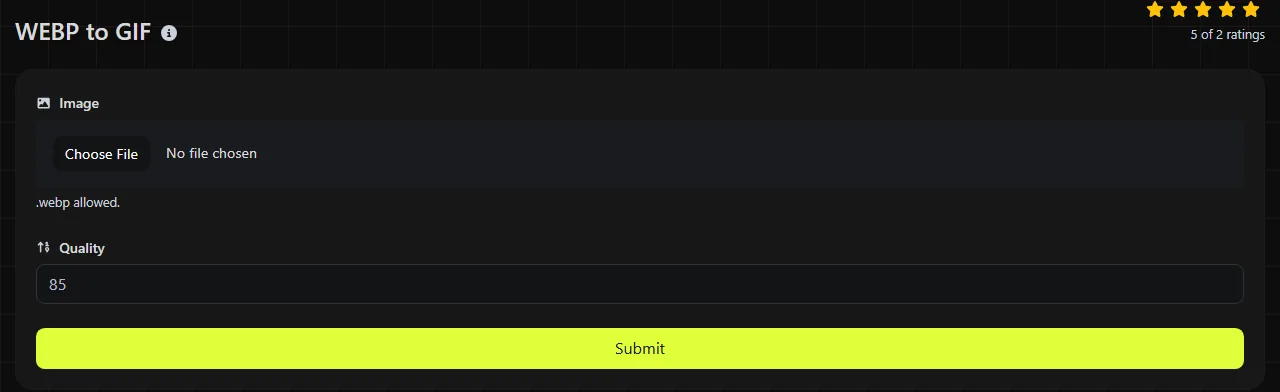
Choose your WebP file, run the conversion and save the resulting GIF to your device.
- Select the WebP image you want to convert.
- Start the WebP-to-GIF conversion and wait for the browser to decode the WebP and generate the GIF.
- Download the generated GIF, then open it to check its colours, transparency and animation.
The WebP-to-GIF conversion takes place entirely in your browser. Your source image is never uploaded to a server, which is useful when the file contains unpublished artwork, internal screenshots or other material you do not want to send to a third-party conversion service.
Keep the original WebP until you have checked the GIF. Conversion can change colour detail and transparency because GIF has stricter technical limits than WebP.
What changes when WebP becomes GIF?
The image is re-encoded with GIF's indexed colour palette, LZW compression and more limited transparency.
| Property | WebP | GIF |
|---|---|---|
| Colour | Supports full-colour photographic images | Limited to a palette of up to 256 colours per frame |
| Compression | Supports lossy and lossless compression | Uses lossless LZW compression after colours have been reduced to an indexed palette |
| Transparency | Supports alpha transparency with partially transparent pixels | Uses binary transparency limited to one designated palette index per frame |
| Animation | Can contain multiple animated frames | Can contain multiple frames with timing and looping information |
| Typical size | Usually compact for web images and animation | Often larger, particularly for photographs, gradients and long animations |
| Support | Supported by current major browsers, but some older applications cannot open it | Widely recognised by browsers, presentation software, messaging services and older applications |
GIF's compression is lossless only in relation to the indexed pixels it stores. Reducing a full-colour WebP to 256 colours can discard visible colour information before GIF compression begins. Smooth skies, shadows and gradients may therefore show banding or dithering.
Both formats can store animation, but animation handling varies between conversion software. Check the downloaded file to confirm that all frames, delays and looping behaviour are present rather than assuming they have been retained exactly.
When does converting WebP to GIF make sense?
Conversion makes sense when the receiving website, application or publishing system accepts GIF but rejects WebP.
- An older content management system requires a GIF upload.
- A presentation or document workflow cannot display WebP reliably.
- A simple animated graphic needs to work in software built around GIF support.
- A small icon or diagram uses few colours and does not need partial transparency.
GIF is usually a poor choice for photographs, detailed game artwork or images with soft transparent shadows. Keeping the WebP will normally preserve more colour detail at a smaller file size. PNG may be preferable for a still image that needs full colour and alpha transparency.
Converting a lossy WebP to GIF does not restore detail removed by the original WebP compression. The GIF encoding may be lossless, but it cannot recreate texture, sharp edges or colour information that is no longer in the source.
Likely file size and visual changes
A converted GIF will often be larger than its WebP source, although there is no fixed ratio. The result depends on the image dimensions, number of frames, movement between frames, colour variation and the source WebP's compression settings.
A flat logo with six colours may remain reasonably small because repeated areas compress well. A photographic image with thousands of colour variations must be reduced to a palette and may use dithering, which creates patterns that are harder for GIF compression to reduce. Animated footage with changing backgrounds can grow particularly quickly because many pixels differ from one frame to the next.
If the GIF is too large, reduce its pixel dimensions, frame count or animation length using a suitable image editor. Lowering the number of colours can also help, but it may make gradients and skin tones visibly rougher.
Worked examples and awkward source files
These examples show the GIF output trade-offs to expect rather than an exact byte size, which cannot be known without processing the particular WebP image.
- Flat interface icon A 64 × 64 WebP with solid colours is a suitable GIF candidate. Its limited palette matches GIF well, although any soft semi-transparent edge must become fully transparent or fully opaque.
- Product photograph A 1,600 × 900 lossy WebP will usually produce a larger GIF with fewer colours. Converting it does not improve the photograph, so JPEG or the original WebP is generally a better delivery format.
- Animated loading graphic An animated WebP can in principle be represented as an animated GIF. Inspect the output for frame timing, looping and transparency because those details may not translate exactly.
- Long or high-resolution animation Processing can require considerable browser memory because frames must be decoded and re-encoded. Very large files may be constrained by the device and browser.
- Invalid file Renaming another file with a .webp extension does not make it WebP. A zero-byte, corrupt or incorrectly labelled file does not contain valid WebP data and cannot produce a valid GIF.
If you need a legacy bitmap rather than an animated image, WebP to BMP is a separate option. For a website favicon, WebP to ICO targets the icon format and its expected square sizes more directly.
Frequently asked questions
Can I convert a still WebP to GIF?
Yes. The result is a single-frame GIF rather than an animation.
Will a GIF keep the colour profile from my WebP?
Do not rely on it. GIF has limited facilities for colour management, and applications may display palette colours without applying the same profile handling used for the source. Check brand colours on the target platform if precise reproduction matters.
Does conversion remove malicious content?
No. Converting WebP to GIF is not a malware scan or a guarantee that a file is safe. Although this tool processes the image locally and never uploads it, files from unknown sources should still be handled with an up-to-date browser and security software.
Should I use GIF or APNG for transparent animation?
APNG is usually the better technical choice when you need full-colour animation and partial alpha transparency. GIF remains useful where a service specifically asks for it or where compatibility with older software matters more than colour depth and file size.
What should I check before sharing the converted GIF?
Open the downloaded file in the application where it will be used. Confirm its dimensions, palette, transparent edges, frame order and looping behaviour, then compare its file size with any upload limit set by that platform.
Similar Tools
Easily convert WebP image files to PNG format with our WebP to PNG converter tool for high-quality images.
Easily convert WebP image files to BMP format with our WebP to BMP converter tool for high-quality images.
Easily convert WebP image files to JPG format with our WebP to JPG converter tool for versatile image usage.
Popular Tools
Create your own custom signature and download it easily with our signature generator tool for personalized e-signatures.
Calculate the size of any text in Bytes (B), Kilobytes (KB), or Megabytes (MB) using our text size calculator tool.
Use the reverse IP lookup tool to find the domain or host associated with any IP address quickly and easily.
Use our ping tool to check the status and response time of any website, server, or port quickly and efficiently.
Digily Link's IP lookup tool provides detailed information about any IP address. Use this free online service to get comprehensive IP data.
Generate your free WhatsApp link instantly with our WhatsApp Link Generator. Add a custom message and start chats in one click. No login or coding required.