Exif reader
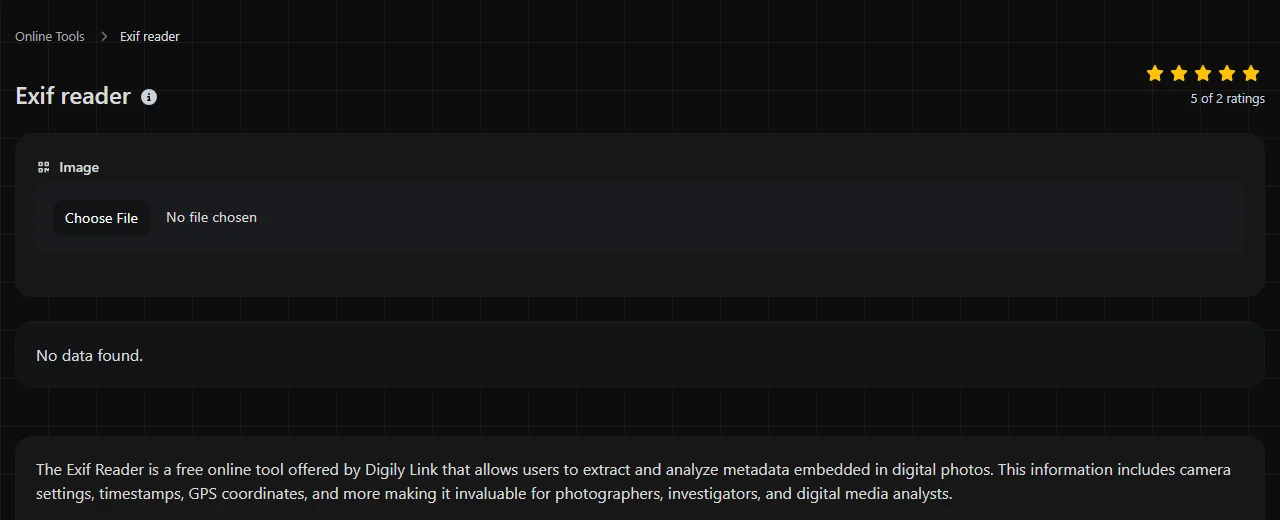
| No data found. |
Exif reader is a free tool that extracts embedded Exif metadata from an image entirely in your browser.
What is Exif data?
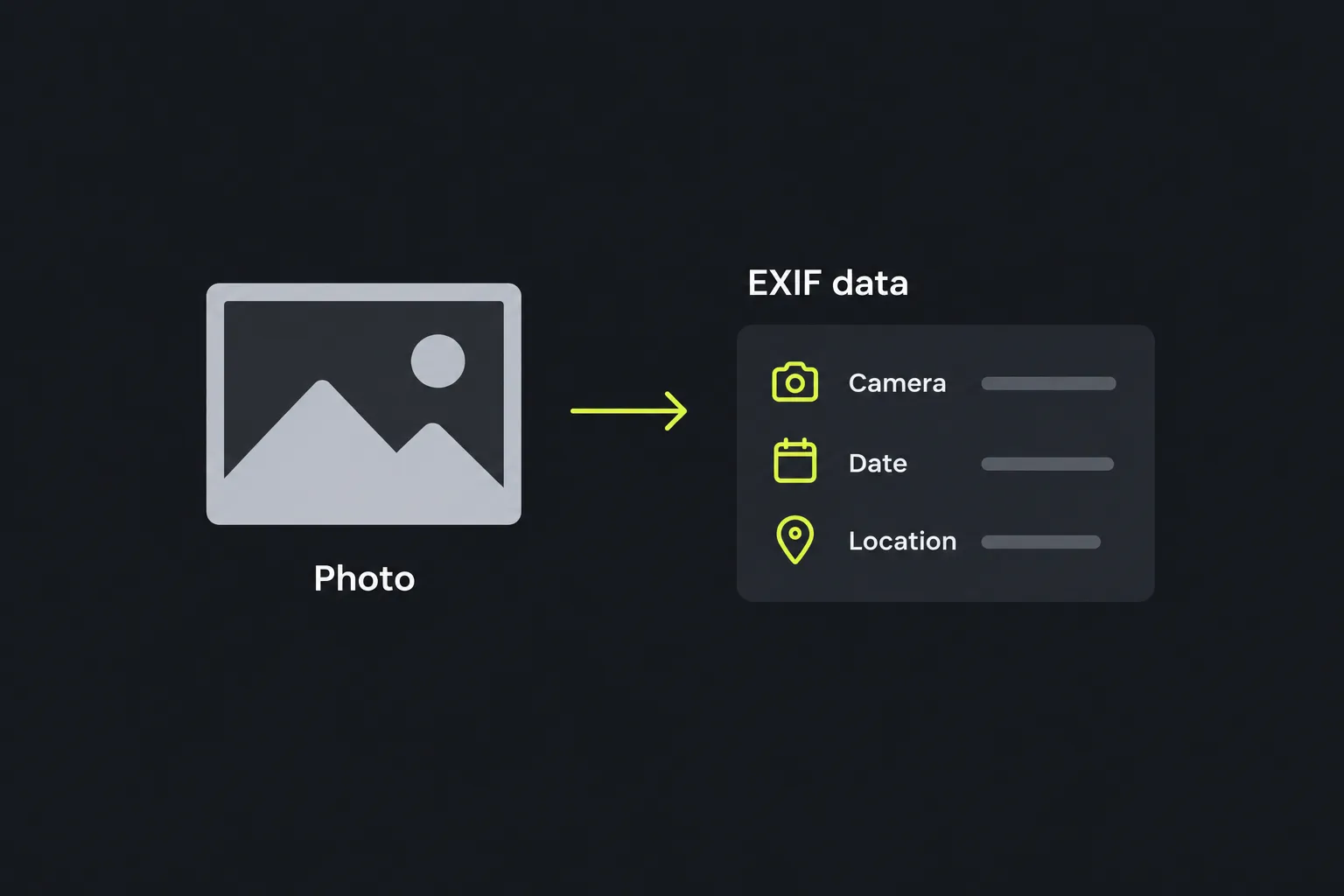
Exif data is information stored inside an image file about how, when and sometimes where the image was created. Exif stands for Exchangeable image file format. Cameras and phones commonly add this metadata when saving a photograph, although the available fields vary by device, settings and file format.
An image may contain details such as:
- Camera manufacturer and model
- Date and time the photograph was taken
- Exposure time, aperture, ISO speed and focal length
- Image dimensions and orientation
- Lens model and software used to edit the file
- GPS latitude, longitude and altitude, if location recording was enabled
- Copyright, artist, description or user-comment fields
Text fields can contain almost any text, including a URL or internal reference number. Unlike a QR code, Exif metadata is not normally used to hold Wi-Fi credentials, contact cards or product identifiers in a standard scannable format. Use a QR code reader or Barcode reader for those formats.
How do I read Exif data from a photo or screenshot?
Upload the image using the file control on this page, then read the extracted metadata in the result. The extracted metadata appears in the Data field. If the result is empty, the tool reports No data found.
- On a desktop or laptop, save the photograph locally if necessary, then select it from the file picker.
- On a phone, choose the image whose Exif metadata you want to inspect from the photo library or another available storage location.
- Review the returned field names and values. Look for fields related to dates, camera settings, software, orientation or GPS position.
- Before sharing the result, remove or obscure anything sensitive, particularly precise coordinates and identifying comments.
You can also inspect a screenshot, but it will not usually retain the original photograph's camera metadata. A screenshot is a newly created image, so any metadata it has normally describes the screenshot file or the software that created it.
Exif extraction works on metadata stored in the file rather than on the visible subject. Spaces, punctuation, accented letters and non-Latin characters in the filename do not change the underlying Exif fields. A blurry photograph can still have complete metadata because image sharpness and embedded metadata are separate matters.
How do I understand the Exif result?
Read each result as a named Exif tag followed by the value recorded by the camera or software. The exact set of tags is not fixed, and two images taken on different devices may return very different amounts of information.
For example, metadata may include the following values:
- DateTimeOriginal with a value such as 2026:08:24 14:35:08 records the camera's stated capture time.
- ExposureTime with 1/125 records an exposure lasting one 125th of a second.
- FNumber with 2.8 describes the aperture used.
- PhotographicSensitivity with 200 records the selected ISO sensitivity value.
- Orientation with a numeric value tells compatible software how to rotate or mirror the stored pixels for display.
- GPSLatitude and GPSLongitude, together with GPSLatitudeRef and GPSLongitudeRef, identify a position when valid GPS data is present. The reference fields specify the hemispheres.
These are illustrative tags rather than fields guaranteed to appear in every result. A date is also not independent proof of when the photograph was taken. Camera clocks can be wrong, and metadata-editing software can change Exif values without visibly changing the image.
If other Exif data appears but location details are absent, a privacy setting may have prevented the camera from recording them.
Privacy and safe handling
The work is done entirely in your browser, and the image is never uploaded to a server. This matters when a photograph may contain private location data, device information or identifying notes.
Local processing does not make the metadata itself harmless. If you copy the result into an email, document or public post, that information leaves your browser through the service you use to share it. Treat exact home, workplace or school coordinates as sensitive.
Exif text fields may also contain URLs. A URL found in metadata can lead anywhere, so inspect its spelling and destination before opening it. Extracting a value does not verify that the value is accurate, safe or trustworthy.
Why does my image say no data found?
An image can show No data found. because it contains no Exif metadata. Social networks, messaging services, image editors and export tools often remove some or all metadata when they resize, compress or convert an image.
Other common causes include:
- The image is a screenshot, downloaded preview or web thumbnail rather than the original camera file.
- An editor exported a clean copy without metadata.
- The file was cropped or converted by software that did not preserve Exif fields.
- The file is incomplete, corrupt or damaged, so its metadata cannot be parsed.
Blur alone does not remove Exif data, and cropping does not always remove it. The outcome depends on how the application saves the edited file. This reader cannot reconstruct metadata that has already been deleted, and it does not infer a camera model, date or location from the visible pixels.
Frequently asked questions
Does renaming a photo change its Exif data?
No. Renaming the file normally changes only its filename, while Exif metadata remains inside the file. Copying it through an application that re-encodes the image may alter or remove the metadata, however.
Can Exif data prove that a photograph is genuine?
No. Exif data can support an investigation, but it is editable and may contain incorrect camera settings or dates. Authenticity checks usually require the original file, its source history and other evidence beyond metadata.
Why are GPS coordinates sometimes shown as degrees, minutes and seconds?
Exif GPS fields commonly store coordinates as degrees, minutes and seconds together with a north, south, east or west reference. Mapping services often use signed decimal degrees instead, so conversion may be needed before pasting a position into a map.
Does Exif always record the time zone?
No. Traditional Exif date fields can contain a local date and time without a time-zone offset. Some files include separate offset fields, but if those are absent, the recorded time may be ambiguous when the device has travelled or its clock setting has changed.
Will converting a JPEG to another image format preserve the metadata?
It depends on the conversion software, destination format and export settings. Some applications copy compatible fields, while others discard them or preserve only a small subset. If the metadata matters, keep the original file and inspect the converted copy before deleting anything.
For a reliable check, use the original image from the camera or phone where possible, review location fields before sharing, and keep an untouched copy if the metadata may be needed later.
Similar Tools
Upload a QR code image and easily extract the embedded data with our QR code reader tool for quick information retrieval.
Popular Tools
Create your own custom signature and download it easily with our signature generator tool for personalized e-signatures.
Calculate the size of any text in Bytes (B), Kilobytes (KB), or Megabytes (MB) using our text size calculator tool.
Use the reverse IP lookup tool to find the domain or host associated with any IP address quickly and easily.
Use our ping tool to check the status and response time of any website, server, or port quickly and efficiently.
Digily Link's IP lookup tool provides detailed information about any IP address. Use this free online service to get comprehensive IP data.
Generate your free WhatsApp link instantly with our WhatsApp Link Generator. Add a custom message and start chats in one click. No login or coding required.