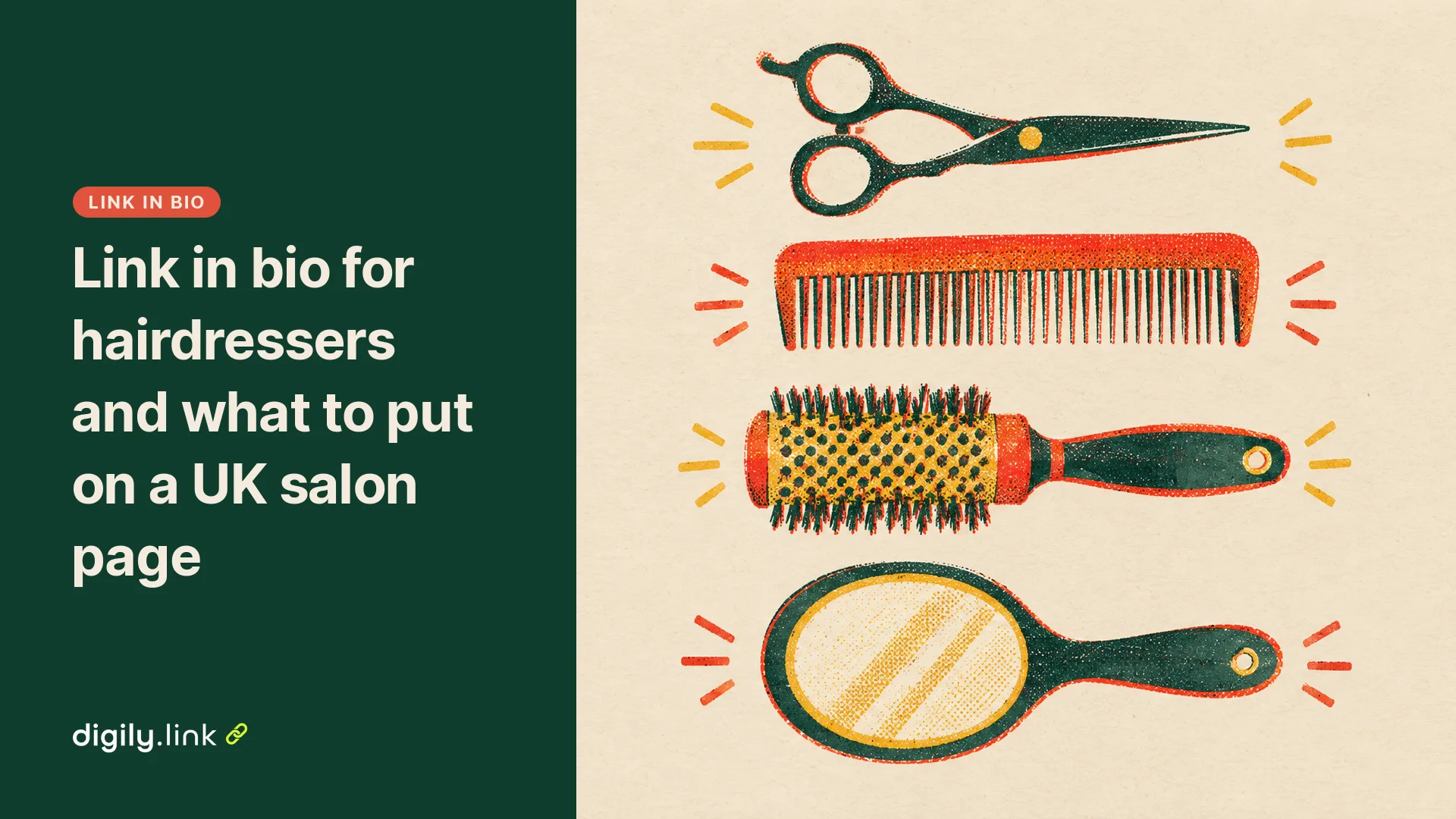
A hairdresser's link in bio page should open with a big booking button, then show your prices, a way to message you, opening hours, directions and your cancellation policy. Its job is to help someone on your Instagram or TikTok profile book an appointment, so the other blocks sit below those two.
The examples use Digily Link, which is our product, and stick to blocks on the free plan unless a section says otherwise.
What to put on a salon link in bio page, and in what order
Put booking first and prices second, then add the details people would otherwise message you about. Treat this order as a starting layout for a salon, a barber, a nail bar or a stylist renting a chair. If you quote only after a consultation, make the first button 'Book a consultation' instead.
| Position | What to add | Why it sits here |
|---|---|---|
| 1 | Booking button | It is the job the page exists for |
| 2 | Price list | Clients can see the cost before they choose a time |
| 3 | WhatsApp or message button | Handles questions the page does not answer |
| 4 | Opening hours | Saves the 'are you open on Monday' message |
| 5 | Get directions | Helps new clients find the door |
| 6 | Cancellation policy | One line on the page, so nobody is surprised |
| 7 | A recent piece of work | Shows your style at a glance |
| 8 | Social icons | Instagram, TikTok and phone, tucked at the bottom |
Give each button one job and label it with what happens when someone taps it. 'Book an appointment' tells a client more than 'Click here'. For layouts that suit cafés, trades and other shops, see how UK small businesses lay out a link in bio page. Writing the short profile text above the link is a separate job, covered in Instagram bio ideas for salons and other UK small businesses.
Booking from a button or booking on the page
On the free plan, a button sends clients to the booking system you already use, so it needs a working booking page to point at. Booking directly on the page needs the Appointment Calendar block, which is only on Pro.
| Option | Where the booking happens | What you need |
|---|---|---|
| Button linked to your booking system | On your booking system's own page | Any plan, including free |
| Appointment Calendar block | On your Digily Link page | Pro plan |
| Instagram action button | Through a partner's service, from your profile | A business or creator account and an existing account with a partner |
As of 29 October 2026, Instagram's Help Centre says action buttons are 'being gradually introduced and may not be available to you yet'. The same page says 'only one action button can be displayed on your profile at a time', and that you need an existing account with a partner to select one. Instagram's page on action button partners says the feature is only for business and creator accounts. It lists some partners, including Fresha, Treatwell and Booksy. If your salon already uses one of those and the feature is available to you, you can connect a Book now button and keep your link in bio page alongside it. The button takes the booking, and the page holds the price list, location, contact details and social links.
Which salon blocks are on Digily Link's free plan
Digily Link's free plan includes Button, Big Button, Business hours, Image, Socials and the text blocks, which is enough for a working salon page. Appointment Calendar, Review, Image Grid and Image Slider are on paid plans, although a free Button can still link to your reviews elsewhere and a single Image block is free. This is how the blocks were split across plans on 29 October 2026.
| Block | Free | Starter | Pro |
|---|---|---|---|
| Button and Big Button | Yes | Yes | Yes |
| Business hours | Yes | Yes | Yes |
| Image | Yes | Yes | Yes |
| Socials | Yes | Yes | Yes |
| Paragraph, Heading, Header Section, Divider | Yes | Yes | Yes |
| VCard | No | Yes | Yes |
| Contact Form | No | Yes | Yes |
| FAQ | No | Yes | Yes |
| Image Grid | No | Yes | Yes |
| Appointment Calendar | No | No | Yes |
| Review | No | No | Yes |
| Calendly | No | No | Yes |
| Image Slider | No | No | Yes |
As of 29 October 2026, Starter costs £2 a month or £20 a year, and Pro costs £4 a month or £40 a year. UK customers pay 20% VAT on top, which makes them £2.40 or £24 and £4.80 or £48. The free plan gives you 5 link in bio pages with up to 15 blocks each, 50 short links, 20 QR codes and 30 days of statistics. Free pages show no adverts, but the Digily Link badge stays on them. Starter and Pro let you remove it.
How to set up a salon page on the free plan
Create the page, then add one block for each item in the order from the first table.
- Go to Dashboard, open Link in Bio and create a new page. Pick an address on one of the free domains, such as ukbio.link/yoursalon or digily.uk/yoursalon (these are representative examples).
- Open the page, choose the Blocks tab and use Add block for each item below.
- Add a Header Section with your salon name and area.
- Add a Big Button labelled 'Book an appointment' and paste the address of your booking page.
- Add Buttons for 'Price list' and 'Message us on WhatsApp', each pointing at the right link. If you have no price page, a Heading and a short Paragraph listing your main services and prices do the same job, using two more of your 15 blocks.
- Add Business hours and mark the days you are closed.
- Add a Button for 'Get directions', linked to a map of the salon.
- Add a Paragraph with your cancellation policy in one sentence.
- Add an Image of a recent cut, colour or set of nails. If the client can be recognised, ask them first. The ICO's marketing guidance for small organisations gives the example of a business owner using customer photos in a campaign and says she needs their consent before she starts.
- Add Socials. The block has icons for Instagram, TikTok, WhatsApp, Email and Telephone.
- Open the page on your own phone and tap every button. Depending on the phone and which apps are installed, a WhatsApp or map link may open in the app or in the browser, so check it on your own handset.
Example page for a made-up salon
Rosa Hair Studio is a made-up salon, and its page uses only free blocks. The names, times and links are representative.
- Header Section reading 'Rosa Hair Studio, Kings Heath, Birmingham'.
- Big Button 'Book an appointment', linked to the salon's booking system.
- Button 'Price list', linked to the price page on the salon's website, with any compulsory fees already included in each price.
- Button 'Message us on WhatsApp', linked to a wa.me link with the salon's full number in international format and no plus sign, zeros, brackets or dashes, such as https://wa.me/447700900123 for a made-up number 07700 900123.
- Business hours set to Tuesday to Saturday, with Sunday and Monday marked closed.
- Button 'Get directions', linked to a map of the salon.
- Paragraph asking clients to give 24 hours' notice to cancel, with a link to the full terms if there is a deposit. The notice period here is only an example, so use your own.
- Image of a recent balayage.
- Socials with Instagram, TikTok and Telephone.
That is 9 blocks against the free limit of 15 per page, so there is room for a seasonal offer button or a second photo. On Pro you could add Appointment Calendar and Review.
Showing prices, booking fees and deposits on a salon page
Show prices that already include every compulsory charge, including a booking fee every client must pay. The CMA's summary of its price transparency guidance (CMA209, updated 7 January 2026) names a booking fee as an example of a mandatory charge and says the total price should normally include it, because listing it separately will not normally be enough. The legal basis is section 230 of the Digital Markets, Competition and Consumers Act 2024, where subsection (2)(b) asks for the total price and subsection (4) says it includes every fee, tax or charge the consumer will necessarily pay. The CMA's guidance on unfair commercial practices (CMA207) also bans showing a headline price and adding mandatory charges as the purchase goes on.
When the price depends on hair length, the stylist or a consultation, the same CMA summary allows a 'from' price as long as it includes all mandatory charges, and asks you to explain how the final price is worked out when it cannot be calculated in advance. A line such as 'Cut and finish from £40, longer hair costs more' does that job.
If you take a deposit or charge for late cancellations, keep the one line on your page and link to your full terms. The CMA's guide to writing a fair contract for customers (updated 22 July 2026) says any cancellation fee must not be excessive and that deposits you keep must take into account what your business will actually lose. Check the guidance or take advice if you are unsure.
Seeing which button clients tap
Each button on a Digily Link page counts its own clicks, so the page statistics show whether 'Book an appointment' gets more taps than 'Price list' or 'Message us on WhatsApp'. The figures count opens. A tap on the booking button is not a booking, and the same client tapping twice can show as two opens, so compare the numbers with the bookings in your own system. On the free plan, statistics go back 30 days. If a button gets very few taps, try moving it higher or rewording the label, then look again a few weeks later.
Putting your page address on Instagram, TikTok and printed QR codes
Paste your page address wherever each profile lets you add a link, and use the same address on anything you print. On TikTok, the Help Centre says you can add a website link if you have at least 1,000 followers or a Verified Business Account, so check that the Links field appears under Edit profile. For Instagram's link limits and the steps, see how to add links to your Instagram bio. The free plan includes 20 QR codes, so you can put one on a card at the till or a sticker in the window. Print a test copy and scan it with your own phone before you order a batch, because cameras and apps vary. If you also want clients to leave reviews, there is a separate guide to a QR code for Google reviews at the till.
To try the layout above with your own salon's details, see how a Digily Link page works for a salon.