Reverse list
Reverse a list of text lines quickly and easily with our reverse list tool for efficient content management.

Reverse list is a free tool that reverses the order of text lines, making the last line first and the first line last.
How do I reverse a list?
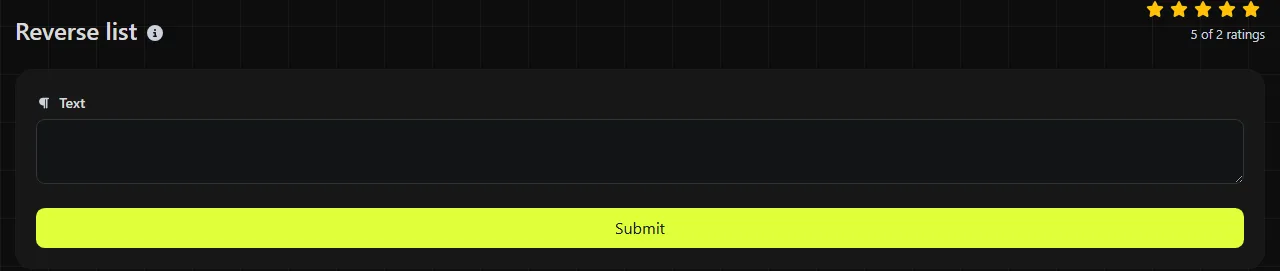
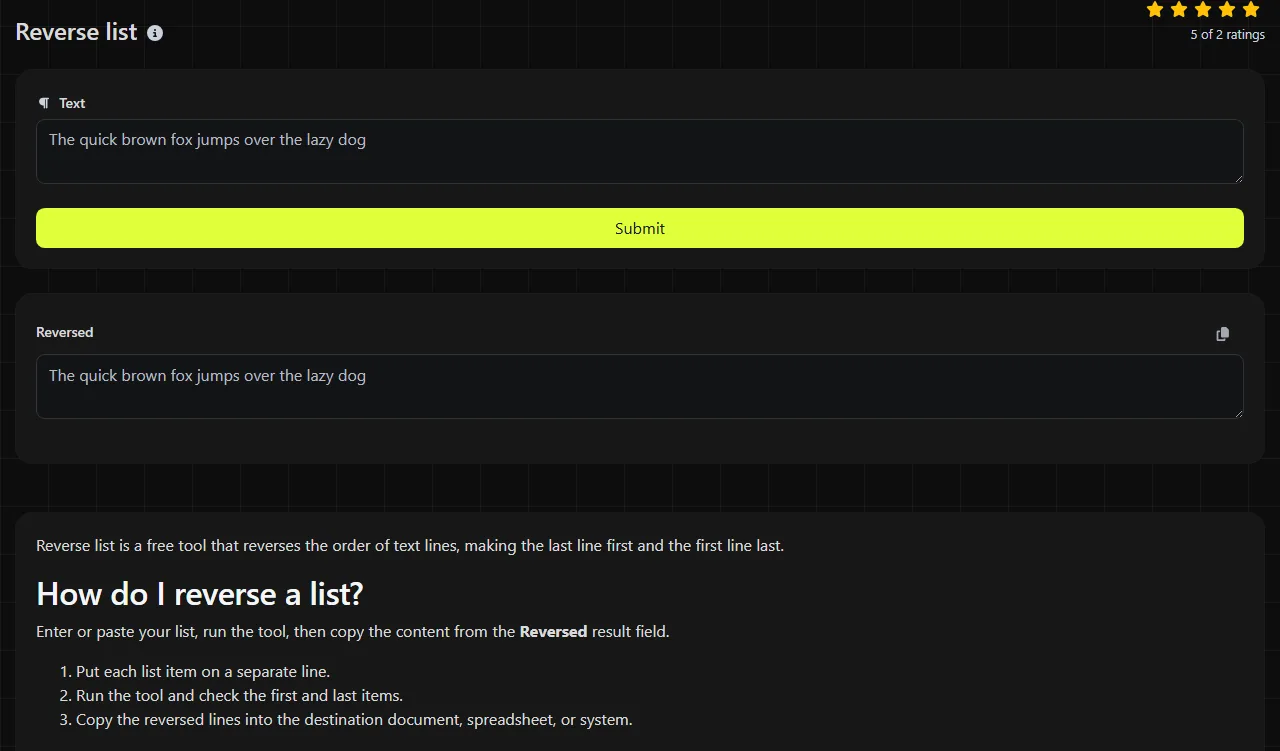
Enter or paste your list, run the tool, then copy the content from the Reversed result field.
- Put each list item on a separate line.
- Run the tool and check the first and last items.
- Copy the reversed lines into the destination document, spreadsheet, or system.
The tool runs on the server. Your input is sent to the server over HTTPS and is not stored.
When does reversing a list save time?
Reversing a list saves time when the current order is exactly opposite the order required by another document, platform, or workflow.
- Rows copied from Excel and Google Sheets can be pasted as lines when records need to run from bottom to top. If the data has multiple columns, keep each complete row together instead of reversing a single column by itself.
- Chronological records can be changed from oldest first to newest first, or vice versa, before they are added to a report or case file.
- Word mail merge preparation may involve a recipient list that a later workflow requires in reverse order. Reverse complete records only. Otherwise, names, addresses, and reference numbers can become misaligned.
- Content management systems sometimes display manually entered items in the order they were added. Reversing the source list before pasting can produce the required display order.
- Task lists from Trello or similar boards can be reordered after you copy card titles as plain text lines.
A useful habit is to add a recognizable temporary line such as "START CHECK" before reversing a long list. It should appear at the opposite end afterward, making it easier to spot an accidental partial selection.
Examples and ways to check the results
For this input:
Monday
Tuesday
Wednesday
The reversed result is:
Wednesday
Tuesday
Monday
Numbers are treated as line content and are not sorted by value. The input lines "10", "2" and "1" become "1", "2" and "10". This is a reversal, not a numerical sort.
Punctuation and accented or non-Latin characters do not determine the order. In a line-based reversal, each complete line changes position. For example, "Café", "東京" and "Item 3!" reverse by line rather than alphabetically.
Check blank lines carefully. In many text formats, an empty line still counts as a line and may create an unexpected gap after reversal. When working with a long list, it is also a good idea to compare the number of lines in the source and the result.
Does Reverse list reverse words or letters?
No, Reverse list changes the order of the lines. It does not reverse the characters or words within each line.
The line "Order reference 4821" remains a single list item while its position changes. Use Reverse words when the words within a line need to appear in the opposite order, or Reverse letters when you need to reverse the characters themselves.
This distinction matters for addresses, product names, and sentences. Reversing their internal text usually makes them unusable, while moving each complete line preserves the item as a unit.
How should I handle spreadsheet and mail merge data?
Keep each logical record on one line, or reverse complete rows in the original spreadsheet instead.
Plain line reversal is suitable for a single column of names, stock codes, or email addresses. It is risky for multi-column data copied with line breaks inside cells because a mailing address or note may take up several physical lines. In that case, add a temporary sequence column in Excel or Google Sheets, sort it in descending order, and then remove the sequence column.
Before a mail merge, verify the first two and last two records instead of checking names alone. Matching each name with its email address, account number, or delivery address helps catch row alignment errors.
Frequently asked questions
Will this tool remove duplicate lines?
No, reversing a list does not remove duplicates. If you do not want repeated entries, remove them separately and decide whether to do so before or after reversal. With some spreadsheet methods, that choice affects which occurrence is kept.
Can I reverse a CSV file with this tool?
Only treat CSV content as a line list if each record occupies exactly one physical line. Quoted CSV fields can legally contain line breaks, so reversing those lines separately may split records and produce an invalid file. A spreadsheet or CSV-aware script is safer in that situation.
What happens to a final blank line or trailing newline?
Text copied from editors or terminals often ends with a newline that is not easy to see. This line-ending character does not necessarily create a final blank line, although different destinations may interpret it as an additional empty line. An actual empty final line is a separate line with no content. Check the top and bottom of the result before pasting it elsewhere.
Can I use the result in a numbered list?
Yes, but remove any existing numbers first if they represent the original positions. After reversing the list, let Word, Google Docs, or the destination editor generate new numbering so the sequence starts correctly.
Is this suitable for passwords or confidential records?
Your input is sent to the server over HTTPS and is not stored, but it still leaves your device for processing.
Popular Tools
Create your own custom signature and download it easily with our signature generator tool for personalized e-signatures.
Calculate the size of any text in Bytes (B), Kilobytes (KB), or Megabytes (MB) using our text size calculator tool.
Use the reverse IP lookup tool to find the domain or host associated with any IP address quickly and easily.
Use our ping tool to check the status and response time of any website, server, or port quickly and efficiently.
Generate your free WhatsApp link instantly with our WhatsApp Link Generator. Add a custom message and start chats in one click. No login or coding required.
Digily Link's IP lookup tool provides detailed information about any IP address. Use this free online service to get comprehensive IP data.