Base64 to Image
Convert Base64 input into an image with our Base64 to image tool for quick and easy image retrieval.
Base64 to Image is a free tool that converts Base64-encoded image data back into an image.
How does Base64 represent an image?
Base64 represents an image by translating its binary bytes into a limited set of printable text characters. It exists because some systems are designed to carry text instead of raw binary data. Encoding the bytes makes them easier to include in email, JSON, HTML, or other text-based formats.
The standard Base64 alphabet uses uppercase letters, lowercase letters, digits, plus signs, and forward slashes. An equals sign may appear at the end as padding. Every three input bytes normally become four Base64 characters, so the encoded form is roughly one-third larger than the original data.
A small text example clearly shows how this works:
- Original bytes interpreted as text: Man
- Base64 output: TWFu
An image goes through the same process, but its original bytes describe a PNG, JPEG, GIF, WebP, or another image format rather than readable text. Raw Base64 does not identify the image type. That information may instead appear in a data URL or be inferred from the decoded file signature.
How do I convert Base64 back into an image?
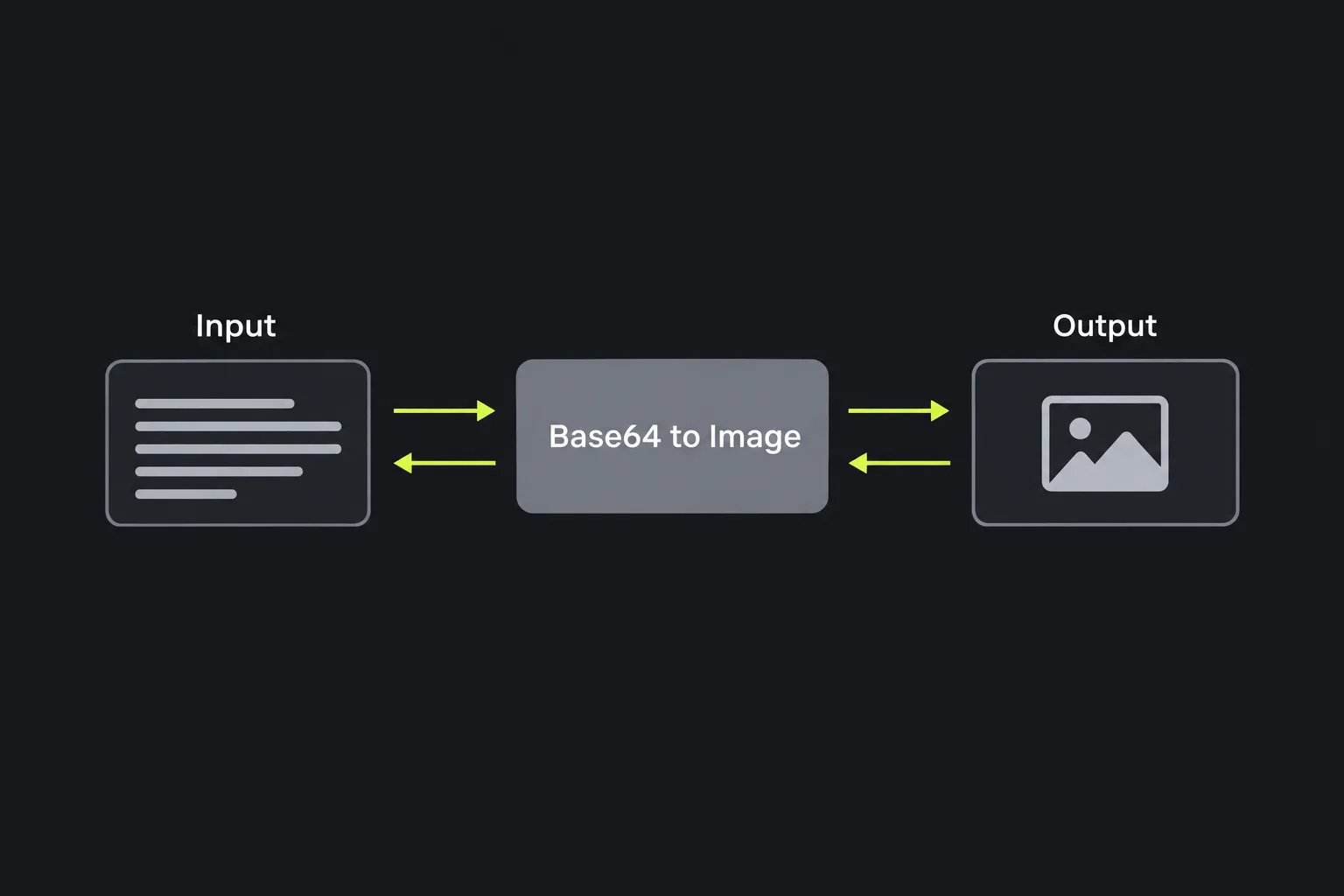
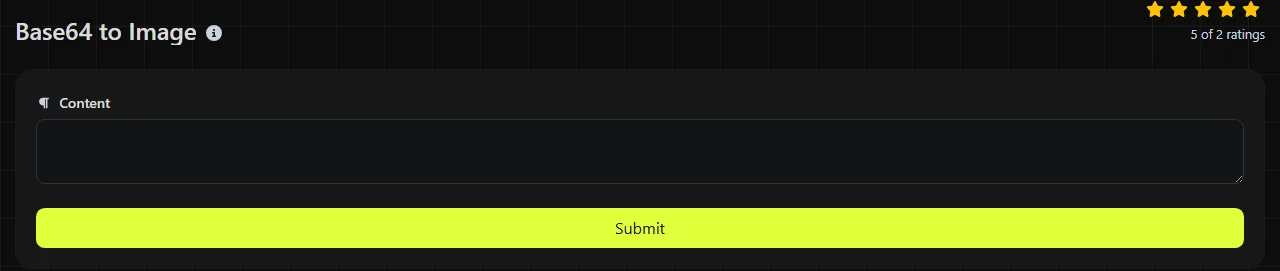
Paste the Base64 image data into the tool and submit it for conversion. The result is returned as an image. Before you begin, check whether the value is raw Base64 or a complete data URL.
- Find the encoded value and copy it without any surrounding quotation marks from JSON, CSS, or source code.
- Look for a data URL prefix such as data:image/png;base64,. The actual Base64 payload starts after the comma.
- If a complete data URL is rejected, remove the prefix and submit only the encoded payload, since decoders vary in whether they accept the wrapper.
- Confirm that the resulting image has the expected content, dimensions, and format before using it elsewhere.
Spaces and line breaks sometimes appear when email software wraps a long Base64 value. Some decoders ignore this whitespace, while stricter ones reject it. Do not add punctuation or explanatory text to the payload. Numbers are valid Base64 characters, but a string containing only valid characters is not necessarily an image.
An empty Base64 value represents no bytes, so it cannot produce a usable image. Very long values are also bulky because Base64 expands the original data, and processing them requires transferring and decoding the complete encoded string.
Why won't my Base64 image decode?
A Base64 image usually fails to decode because the text is malformed or incomplete, uses the wrong alphabet, or does not contain image bytes. Double encoding can also be the cause if the source encoded it more than once. Where and how the failure occurs can help identify the problem.
- Truncated input. Copying from logs, database viewers, or messaging systems can cut off the end of a long value. Missing characters usually make the decoded bytes incomplete.
- Wrong variant or alphabet. Standard Base64 uses + and /, while Base64url commonly uses - and _. A decoder expecting the other variant may reject the input.
- Missing padding. Base64 values may end with one or two equals signs. Some systems omit this padding, and some decoders reconstruct it, but strict implementations may require it.
- Binary data that is not an image. Base64 can represent a PDF, archive, font, or any other bytes. Valid Base64 therefore does not guarantee a valid image.
- Text encoding confusion. Accented letters, emoji, and non-Latin characters are not part of the Base64 alphabet. These characters must first be represented as bytes, commonly with UTF-8, before Base64 encoding.
- Double encoding. If the first decode produces another long string containing only Base64 characters, the source may have been encoded twice. Decode the intermediate value one more time only if its origin confirms that this is expected.
If a general Base64 decoder produces gibberish, that does not necessarily mean the decoding failed. Image bytes are binary and are not expected to be readable as text. Use Base64 decoder when you need to inspect a non-image payload, and Image to Base64 when you need to perform the reverse operation.
Where is Base64 image data used?
Base64 image data appears wherever binary files need to pass through a text-based field or document. Common examples include images embedded in HTML or CSS data URLs, image properties in JSON API payloads, and MIME email parts.
It can also appear in query strings, where application query parsers may mishandle standard Base64 characters, particularly form-style parsers that treat plus signs as spaces or equals signs as delimiters. Base64url replaces the troublesome alphabet characters and often omits padding, making it better suited for URLs and tokens.
Internationalized domain names do not use Base64. In the IDNA system, ASCII labels remain unchanged, while non-ASCII U-labels may be represented as A-labels using Punycode. A Base64 value may occur elsewhere in a URL, such as in its query string. This distinction is important when diagnosing a value copied from a browser address.
JSON has no native binary type, so APIs sometimes place Base64 image content inside a quoted string. This is convenient for text-based data exchange, but it increases the payload size. For large or frequent uploads, a standard binary file upload is often more appropriate.
Base64 encoding, secrecy, and server processing
Base64 is encoding, not encryption, and it provides no secrecy. Anyone who has the value can decode it without a password or key, so credentials, private photos, and confidential documents should not be protected simply by converting them to Base64.
For this tool, the processing takes place on the server. Your input travels to the server over HTTPS and is not stored. HTTPS protects the connection while the data is in transit, but it does not turn the Base64 value into encrypted content or make an untrusted source safe.
Decoding also does not verify that an image is harmless. Treat images decoded from Base64 values received from unknown senders with the same care as other downloaded images.
Frequently asked questions
Can I tell the image format from raw Base64?
Sometimes, but the Base64 alphabet alone does not specify a format. Decoded files contain signatures, often called magic bytes, that software can use to distinguish formats such as PNG, JPEG, and GIF. A data URL may also specify a media type, although that label can be wrong and should not override the actual bytes.
Does decoding Base64 reduce image quality?
No. A correct Base64 decode restores the original bytes and does not recompress the image. Image quality, color data, and embedded metadata remain unchanged unless another program later edits or converts the decoded file.
Can Base64 contain an SVG image?
Yes, SVG data can be Base64-encoded, although support for displaying it depends on the receiving software. SVG is an XML-based format and can contain scripts, links, or external references, so do not assume that a Base64-encoded SVG from an unknown source is safe to open.
Why is a Base64 image larger than the original file?
Base64 produces four text characters for every three bytes of source data, and the final quantum may contain padding. RFC 4648 requires padding unless the referring specification explicitly allows it to be omitted. The result is therefore about one-third larger before any data URL prefix, JSON quoting, or transport overhead is added. When a system accepts standard file uploads, sending the original binary image usually uses less data.
Similar Tools
Convert your image into a Base64 string with our image to Base64 tool for efficient data encoding.
Popular Tools
Create your own custom signature and download it easily with our signature generator tool for personalized e-signatures.
Calculate the size of any text in Bytes (B), Kilobytes (KB), or Megabytes (MB) using our text size calculator tool.
Use the reverse IP lookup tool to find the domain or host associated with any IP address quickly and easily.
Use our ping tool to check the status and response time of any website, server, or port quickly and efficiently.
Generate your free WhatsApp link instantly with our WhatsApp Link Generator. Add a custom message and start chats in one click. No login or coding required.
Digily Link's IP lookup tool provides detailed information about any IP address. Use this free online service to get comprehensive IP data.