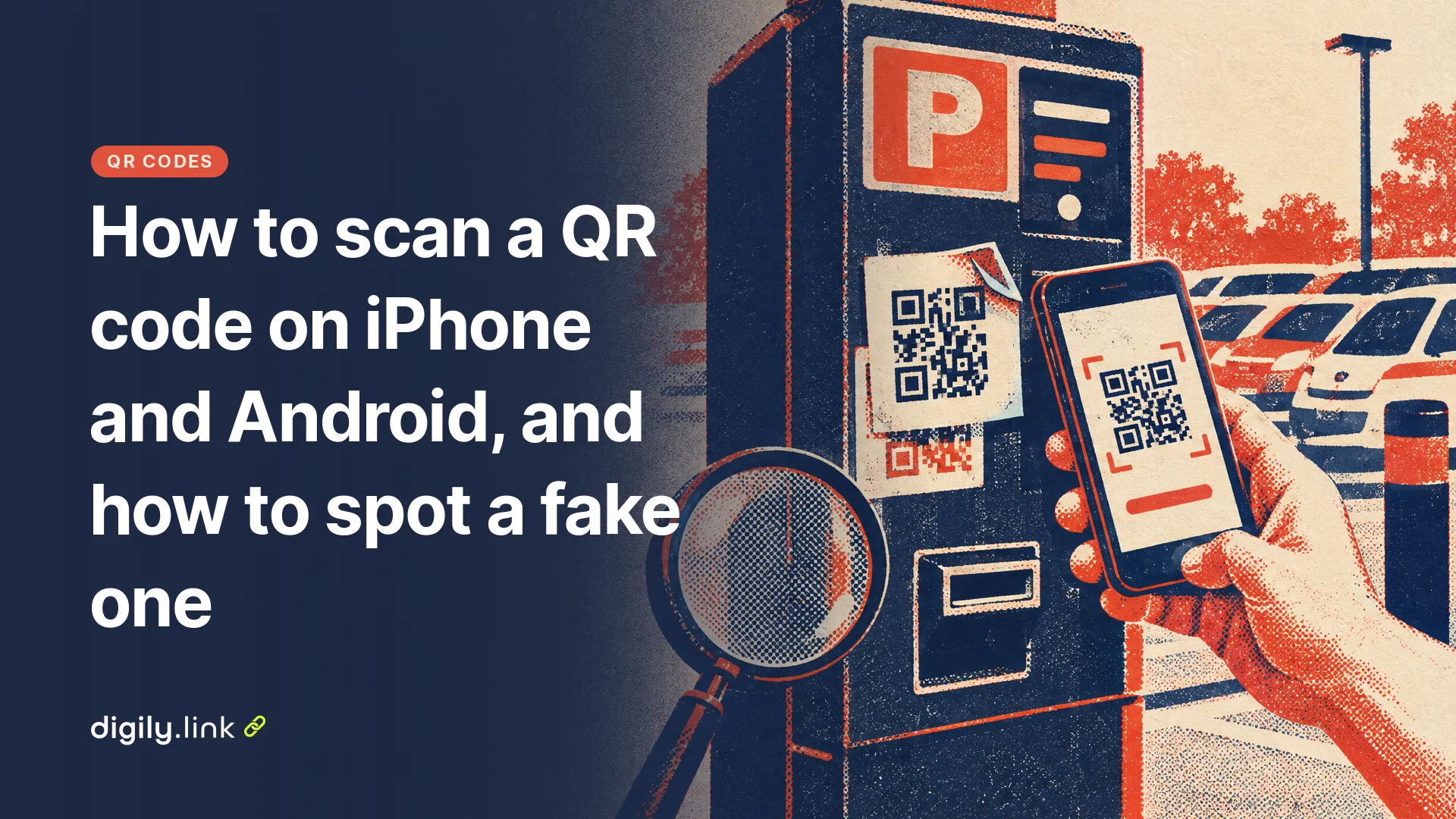
To scan a QR code, open your phone's camera, point it at the code so the whole square is on screen, and tap the link or banner that appears. Recent iPhones and most Android phones do this without an extra app. If nothing happens, use the QR scanner in Control Centre on an iPhone or in Quick Settings on Android. Before you open the link, read the address your phone shows. It won't catch every fake, but it's the first and easiest check.
This guide covers the steps on both kinds of phone, what to do when a code won't scan, and how UK guidance suggests you avoid QR code scams. Apple's and Google's steps and the NCSC's advice were checked on 19 October 2026.
How do I scan a QR code on an iPhone?
- Open the Camera app and stay in Photo mode.
- Point the camera at the code so the whole code is in the frame. You don't need to take a picture.
- Tap the link that appears at the bottom of the screen.
You can also add the Scan Code control to Control Centre and open it from there, which is handy when the camera doesn't react. Steps from Apple's iPhone User Guide, Scan a QR code with your iPhone camera.
How do I scan a QR code on Android?
On a Pixel, Google's steps are similar.
- Open the Camera app. If codes aren't recognised, check that Camera scan suggestions is turned on in the camera's settings.
- Point the camera at the code so it fits on the screen. You don't need to take a picture.
- Wait for the bubble or link to appear, then tap it.
There's also a Scan QR code button in Quick Settings, and Google Lens can scan codes too. Samsung and other Android phones use their own camera apps, so labels differ, but most have a built-in scanner in the camera or the quick settings panel. Steps from Pixel Phone Help, Scan QR codes with your Pixel phone.
Why won't my phone scan a QR code?
- Part of the code is off screen, or you're too close. Step back until the whole square fits.
- Glare or poor light. Tilt the phone to get rid of reflections, especially on laminated menus and shop windows.
- A dirty lens. A quick wipe fixes more scanning problems than you'd expect.
- The code is damaged, faded or printed too small, or the white border around it has been cut off.
- Scanning is switched off in your camera settings, as on Pixel's Camera scan suggestions.
If a code still won't scan and you only want to know what's in it, take a screenshot or photo and select it in a QR code reader. Our free QR code reader decodes the image in your browser, without sending it to a server, and shows the data inside the code as text, so you can read the address before deciding whether to visit it.
Are QR codes safe to scan?
Many are, but not all. In guidance published in February 2024, the UK's National Cyber Security Centre said QR codes in pubs and restaurants are probably safe, while codes in open spaces such as stations and car parks may be riskier. It also warned about the growing use of QR codes in phishing emails, sometimes called quishing, partly because not every email security tool checks images. See NCSC, QR codes, what's the real risk?
How to spot a fake QR code
- Look for a sticker over the original code, especially on parking machines, posters and charging points. If something looks stuck on, don't scan it.
- Read the address your phone shows before you open it, and check the spelling of the company name and the domain letter by letter. Remember that a short link can hide the final destination, and a padlock or https doesn't prove a site is genuine.
- Be suspicious of a code that asks for more than you'd expect, such as card details to read a menu or a login to see a timetable.
- Treat QR codes in unexpected emails, letters and texts with extra care, particularly ones about payments, parcels or account problems.
- When in doubt, skip the code and go to the organisation's official website or app yourself.
- Use the scanner built into your phone rather than a QR app from an app store, as the NCSC recommends.
If you've entered card details on a page you reached through a suspicious code, contact your bank straight away.
What a QR code can and can't do
A QR code holds data, not an app. Reading a code doesn't normally install anything, and depending on what's in it, it can open a website, show text, offer to join a WiFi network, start a phone call or text, or show a contact card to save. The risk comes from following a malicious link, which can lead to a phishing page asking for a password or payment details, or to a harmful download. That's why it pays to check before you tap.
Frequently asked questions
Do I need an app to scan a QR code?
Usually not. Recent iPhones and Android phones scan codes with the built-in camera or a built-in scanner.
Can I scan a QR code from a screenshot?
Yes. Upload the image to a QR code reader, or on Android open it with Google Lens.
Can a QR code hack my phone?
The code itself is just data. The danger is the page or download it leads to, so read the address first, don't install apps from links in QR codes, and keep your phone's software up to date.
How do I check where a QR code goes without opening it?
Read the preview your camera shows, or upload a screenshot to a QR code reader, which shows the contents as text.
Where do I report a QR code scam in the UK?
In England, Wales and Northern Ireland, report fraud to Report Fraud, the service that replaced Action Fraud, online or on 0300 123 2040. In Scotland, Report Fraud asks you to report via Police Scotland on 101. Forward suspicious emails to the NCSC at report@phishing.gov.uk.
Making QR codes for your own business? See how the Digily Link QR code generator works.