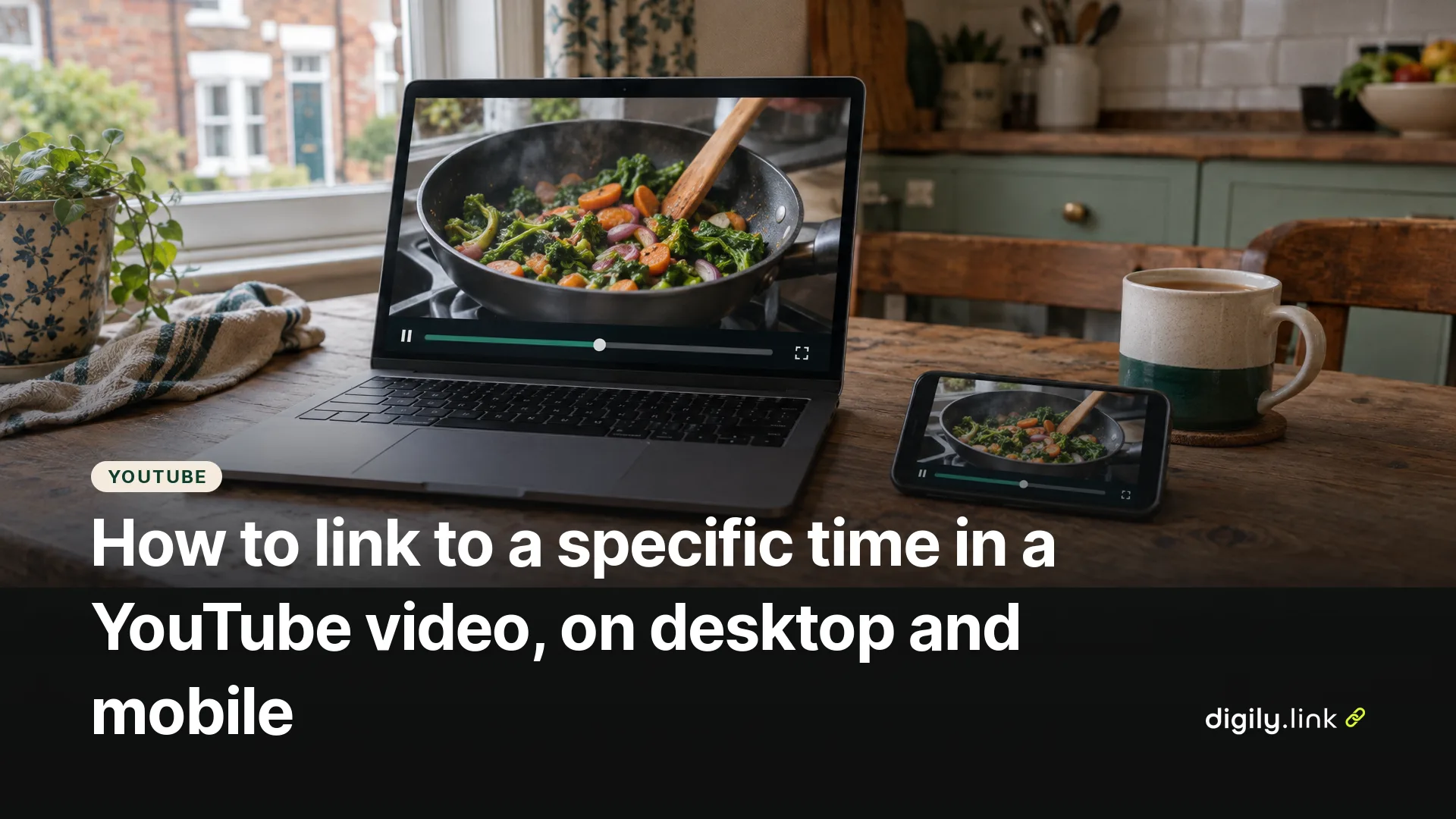
To link to a specific time in a YouTube video on a computer, click Share under the video, tick Start at, enter the time and copy the link. On a phone, play the video to the moment you want, tap Share, switch on the toggle showing the current minute and second, and then tap Copy link. Whoever opens the link should start watching from that point instead of from the beginning.
The steps below follow YouTube Help's sharing instructions for computer, Android and iPhone, read on 29 October 2026.
How to share a YouTube video at a specific time on a computer
- Open the video on youtube.com and start playing it.
- Click Share under the video.
- Tick Start at and enter the time you want the video to start from.
- Click Copy and paste the link wherever you want to share it.
YouTube's own example is entering 2 minutes 30 seconds to start the video there (YouTube Help, Share videos and channels, computer instructions).
There is often a quicker route on a computer. Pause at the right moment, right-click the video and choose Copy video URL at current time. YouTube's help pages don't describe this menu, so if you don't see the option in your browser, use Share instead.
How to share a YouTube video at a specific time on iPhone or Android
- Open the video in the YouTube app and play or drag it to the moment you want.
- Tap Share under the video player.
- Switch on the toggle that shows the current minute and second of the video.
- Tap Copy link, or pick an app such as WhatsApp to share it straight away.
YouTube Help gives the same steps for Android and iPhone and iPad. If the toggle doesn't appear in your version of the app, update the app or add the time by hand as described next.
How to add a timestamp to a YouTube link by hand
Add t= and the start time in seconds to the end of the link. For a start at 6 minutes 23 seconds, that is 383 seconds.
- For a long link, add &t=383, so youtube.com/watch?v=VIDEO_ID becomes youtube.com/watch?v=VIDEO_ID&t=383.
- For a short youtu.be link, add ?t=383, so youtu.be/VIDEO_ID becomes youtu.be/VIDEO_ID?t=383.
The difference is the joining character. The long link already has a question mark before v=, so the next part starts with &. The short link has no question mark yet, so it needs one. If the youtu.be link you copied already has something after a question mark, such as ?si= followed by letters, add &t=383 at the end instead. If the link already contains a t= value, change that number rather than adding a second one. This format is widely used but isn't documented in YouTube Help, so open the link once before you send it.
How to make an embedded YouTube video start at a set time
For a video embedded on your website, add start= with the time in seconds to the embed address, and end= if you want it to stop early. YouTube's player documentation says start makes the player 'begin playing the video at the given number of seconds from the start of the video', and end is also counted from the beginning of the video, not from the start value (YouTube Embedded Players and Player Parameters, read 29 October 2026).
So youtube.com/embed/VIDEO_ID?start=90&end=150 plays one minute, from 1 minute 30 to 2 minutes 30, once the viewer presses play. The same page notes that the player jumps to the nearest keyframe, so playback may begin up to about two seconds early.
Why does my YouTube timestamp link start from the beginning?
The start time didn't reach the player. Check these two causes first.
- The time was never added. Check that the link you pasted contains t= followed by a time, such as t=383.
- A link shortener or app opening feature kept only the video ID. Some services open the YouTube app on mobile and pass it the video but not the start time.
To find out which, paste the link into a browser on a computer. If it starts at the right time there, the link itself is probably fine and the problem is more likely in how it opens on the phone.
This applies to Digily Link too. Digily's Auto open app on mobile setting recognises YouTube links and sends phones straight to the YouTube app, but it only passes the video ID, so the start time is lost. We checked this in Digily's own code on 29 October 2026, not on a phone. The setting is on by default for new short links where your plan includes it, and the free plan does. If you shorten a timestamped link, open the link's settings and switch off Auto open app on mobile. Digily then forwards viewers to the full YouTube address with the time still in it. What the phone does with that address, browser or app, is up to the phone. Our guide to the YouTube link shortener covers when app opening helps, and what deep linking is explains how it works.
Is a timestamp link the same as a YouTube chapter?
No. A timestamp link sends one person to one moment. Chapters split the video into labelled sections shown on the progress bar. You make chapters by listing timestamps with a title for each in the video description, and YouTube Help sets three rules for doing it by hand. The first timestamp must be 00:00, there must be at least three in ascending order, and each chapter must be at least 10 seconds long (YouTube Help, video chapters). The same page says that if you don't yet have access to chapters, you apply for access to advanced features. If you keep sending people to the same section of your own video, a chapter may serve them better than a link.
Sharing a timestamped link in a bio, a newsletter or on a printed card? Shorten a timestamped YouTube link with Digily Link, and leave Auto open app on mobile switched off for that link.